

TL;DR
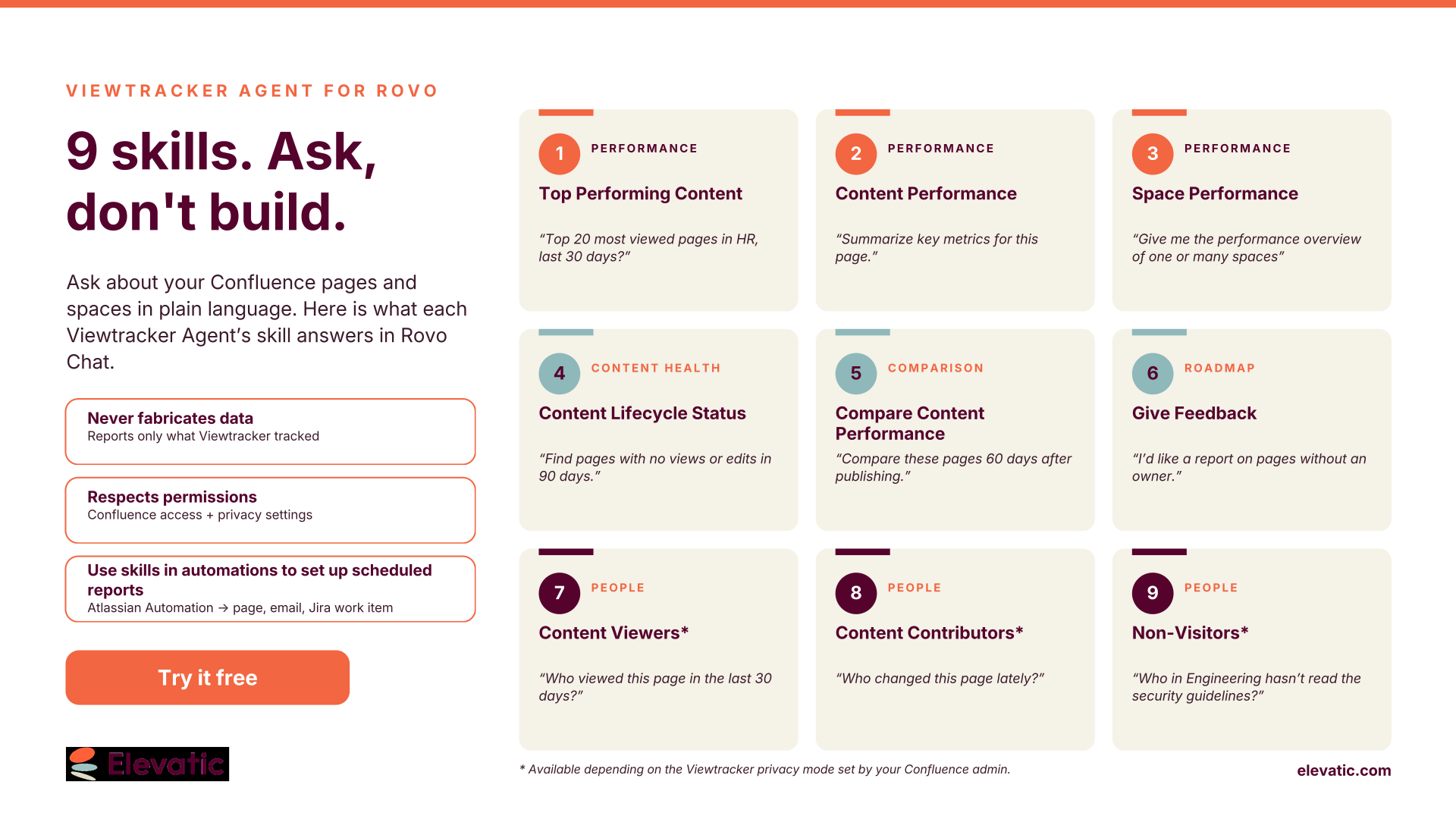
The Viewtracker Agent is a Rovo Chat agent for Confluence Cloud. It answers questions about Confluence content usage in plain language and returns a table built from Viewtracker data. It has nine skills: three for performance, one for content health, one for comparison, three for auditing, and one for feedback. You don’t pick a skill. The agent picks it from your question and applies defaults for anything you leave out. This guide explains each skill, includes a prompt to try, what you can set, and the limits you should know.
You know what you want to find out. Which onboarding pages actually get read? Has anyone opened the new travel policy? Did last quarter’s announcements do better than this quarter’s?
Getting those answers usually means opening a dashboard or report, setting filters, and searching for the content and its usage data. The Viewtracker Agent replaces that with a question in Rovo Chat. To get a useful answer on the first try, though, it helps to know which skills back it up.
What is a Viewtracker Agent skill? A skill is a report type the agent can run on Viewtracker data. The agent matches your question to a skill, turns it into parameters (scope, date range, filters, sorting, number of results) and returns the result.
Know how the agent turns your question into a report
Every request goes through the same four steps:
- Match: the agent picks the skill that fits your question. If two could fit, it asks or tells you which one it chose.
- Translate: it asks clarifying questions when necessary and translates your words into parameters for the analysis.
- Fill the gaps: when parameters are not specified, the agent automatically applies default values. It documents these defaults in the response, along with available options.
- Build: it creates the response only from Viewtracker tracking data and Confluence metadata.
If you open Rovo Chat on a Confluence page or space, the agent uses it as the context. You can also start from any Viewtracker report with the Ask Agent button.
Get better answers with five prompting habits
- Name the scope, the timeframe and the measure: “pages in HR, last 30 days, by unique viewers” works better than “what’s popular?”
- Change one thing at a time: ask “now compare with last quarter” rather than rewriting the whole prompt.
- Ask for absolute numbers when you need exact counts. Comparisons show percentage changes by default.
- Expect completed periods: “this month” is still in progress, so comparisons use the previous completed period.
- Ask Rovo what the numbers mean: a follow-up such as “What should we do about these pages?” turns the table into suggested next steps.
Schedule the reports you need every week
For recurring reports, run the agent from Atlassian Automation.
Some questions come back every week or every month. Instead of asking each time, let Atlassian Automation ask for you and deliver the answer where your team already works:
- Weekly content digest: every Monday, the top 10 most viewed pages in your intranet space are posted to an Analytics page, so the comms team sees what landed.
- Monthly compliance check: on the first of the month, HR gets an email listing who in each team hasn’t opened the updated policy yet, ready for a reminder.
- Quarterly space review: before each governance meeting, a space performance comparison lands as a Jira work item, so the discussion starts from numbers rather than gut feeling.
One tip: a scheduled report can’t ask you follow-up questions, so write the prompt as if you were briefing a colleague. Name the space, the timeframe and what you want to see. The step-by-step setup is in our documentation.
Trust what the agent tells you
- It never makes up data. The agent doesn’t estimate, extrapolate or fill gaps. If data doesn’t exist, it says so.
- It respects permissions. It applies your Confluence and Viewtracker report permissions to every request, and content you can’t access never shows up.
- It respects privacy settings. In Standard mode, everyone with report access can use the three people skills. In Hide viewers mode, only a permitted group can. In Extended privacy mode, those skills are switched off and the Last viewer column is hidden.
Key Takeaway
The Viewtracker Agent works best when you know what it can answer. Nine skills cover the questions Confluence teams ask most: what performs, what’s gone stale, how content compares, and who has or hasn’t read it.
Once you know the skills, you can stop building reports and start asking for them.
Want to see which questions your Confluence content can answer? Start your free Viewtracker trial, read the Viewtracker Agent documentation, or book a demo with our team.
Frequently asked questions
Couldn’t find what you need?
It’s a Rovo Chat agent that comes with Viewtracker – Analytics for Confluence Cloud. You ask questions about Confluence content usage in plain language, and it returns a table built from Viewtracker data. Read more here.
No. The agent picks the skill from your question and tells you which parameters it used.
Viewtracker for Confluence Cloud version 8.0.0 or later, Rovo enabled on your site, view access to the content, and access to its Viewtracker reports. No admin rights or separate installation are needed.
Yes. Check how to schedule a recurring Viewtracker report with Atlassian Automation here.
No. It’s available for Confluence Cloud only.