

TL;DR
Elements Copy & Sync can be migrated from Jira Data Center to Jira Cloud with the Jira Cloud Migration Assistant (JCMA). JCMA converts most Operations, Synchronizations and Field mappings into Cloud recipes. Copy to remote instance, Data panels, Copy to Confluence and Velocity scripts need manual handling.
Jira Data Center reaches end of life on March 28, 2029, and a full Jira Cloud migration typically takes 3 to 9 months or more, so start your assessment early.
If you’re still running Elements Copy & Sync on Jira Data Center, you’ve probably already heard the news. Atlassian has officially announced the end of life for its Data Center products, and the countdown is on. Planning your Jira cloud migration now is not just a smart move; it’s becoming a hard requirement.
The good news: Elements Copy & Sync Cloud covers the same use cases with a simpler, recipe-based logic. It is also compatible with JCMA, which migrates most of your configuration for you. A few features still need manual handling, so planning matters.
This guide walks you through everything you need to know:
- the Atlassian deadlines and how long a migration really takes
- the checklist to complete before you start
- how to migrate Elements Copy & Sync with JCMA
- what changes between Data Center and Cloud
- how your data is protected in the Cloud
- how our migration team can help you, from assessment to post-migration testing
Jira Cloud migration deadlines: when does Data Center reach end of life?
Jira Data Center reaches end of life on March 28, 2029. After that date, your DC instance and its Marketplace apps, Elements Copy & Sync included, become read-only.
| Date | What changes |
|---|---|
| March 30, 2026 (passed) | New customers can no longer buy Data Center subscriptions or DC Marketplace apps. |
| March 30, 2028 | Existing customers can no longer buy new DC subscriptions, expand user tiers or buy DC apps. |
| March 28, 2029 | End of life: DC and app licenses expire, and instances go read-only. Support and critical security fixes stop. |
Source: Atlassian, Data Center End of Life.
Read-only means no new actions, no new data and no updates. For teams running cross-project synchronizations or ITSM workflows, that risk grows the longer you wait.
How long does a Jira Cloud migration take?
Longer than most teams expect. Atlassian puts the average at about 9 months, and the main driver is user count:
| Instance size | Typical duration |
|---|---|
| Up to 1,000 users | ~3 months |
| 1,000 to 5,000 users | ~6 months |
| 5,000+ users | ~9 months or more |
Large enterprise instances often need 12 to 24 months once app compatibility, clean-up, training and phased rollouts are factored in.
That leaves roughly 29 months before end of life, so a large instance has little margin. Custom configurations, dependencies and Marketplace apps all need to be mapped before you move. That’s especially true when Elements Copy & Sync manages critical workflows across your projects.
What should you check before migrating Copy & Sync to Jira Cloud?
Complete these before your production run. The full list is in our migration checklist.
- Map your usage. List the Elements Copy & Sync features you use on Data Center, and check in the feature parity table which ones need manual work. (see below)
- Confirm license eligibility. Your Elements contact can share the list of licenses eligible for migration.
- Prepare your Cloud site. Make sure your site is active and you have admin rights on both instances. Install Elements Copy & Sync, plus Elements Overview and Elements Publish if you use data panels or Copy to Confluence.
- Back up your configuration. In Copy & Sync on DC, go to Administration > Backup and download your dump file. Send it to our support team for a free analysis. We only access configuration, never customer data.
- Replace Velocity scripts. Velocity doesn’t run on Cloud, so plan to use smart values and fields instead.
- Run a test migration first. Always validate on a staging site before the production run.
Feature parity: what changes between Copy & Sync Data Center and Cloud?
One of the first questions teams ask during a Jira cloud migration is whether their existing workflows will survive the move. With Elements Copy & Sync, the short answer is yes. The core capabilities are all there.
The Cloud version works through an all-in-one recipe model rather than the separate operations, synchronizations, and field mapping configurations you manage in Data Center. The logic is different, but the outcome is the same. Whether you’re using the “Copy and synchronize Jira work items” recipe, the “Synchronize linked work items” recipe, or managing field mappings inside the Content tab, every major Data Center feature has a Cloud equivalent.
Cross-instance copying, which lets teams push issues from one Jira instance to another, is also fully supported.
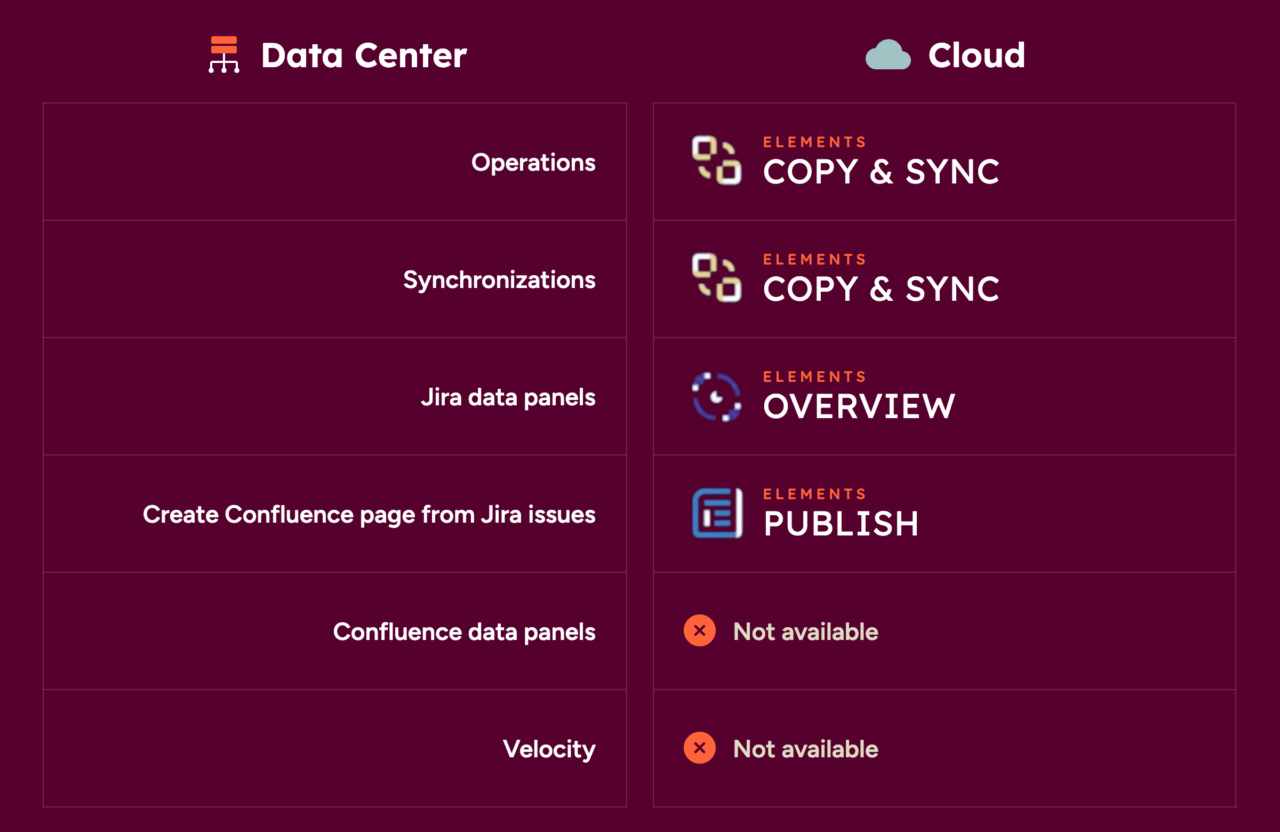
If you currently rely on Jira data panels to surface related information directly on issues, that feature continues to work through Elements Overview on Cloud (more on that below).
Two features from the Data Center version are not available on Cloud: Confluence data panels and Velocity. If your team depends on either of those today, it’s worth flagging early in your migration planning so you can find the right workaround before cutover.
Read more about feature parity in our documentation
Two companion apps worth knowing before you migrate
If you’re coming from Data Center, two Elements apps on Cloud cover features that were previously bundled inside the DC version of Elements Copy & Sync.
Elements Publish handles the creation of Confluence pages directly from Jira issues. If your team uses this feature today inside Elements Copy & Sync Data Center, Elements Publish is its dedicated Cloud replacement, with a focused interface built specifically around the Jira-to-Confluence publishing workflow.
Elements Overview replaces Jira data panels on Cloud. It lets you embed contextual data from linked issues, sub-tasks, or related items directly on the Jira issue view, giving teams the visibility they need without leaving the issue screen. If data panels are a core part of how your teams work, installing Elements Overview before you migrate means there’s no gap in the user experience post-cutover.
Exclusive Cloud features
Here’s where the story gets more interesting. Moving to Cloud is not just a lift-and-shift; you actually gain capabilities that don’t exist in Data Center at all.
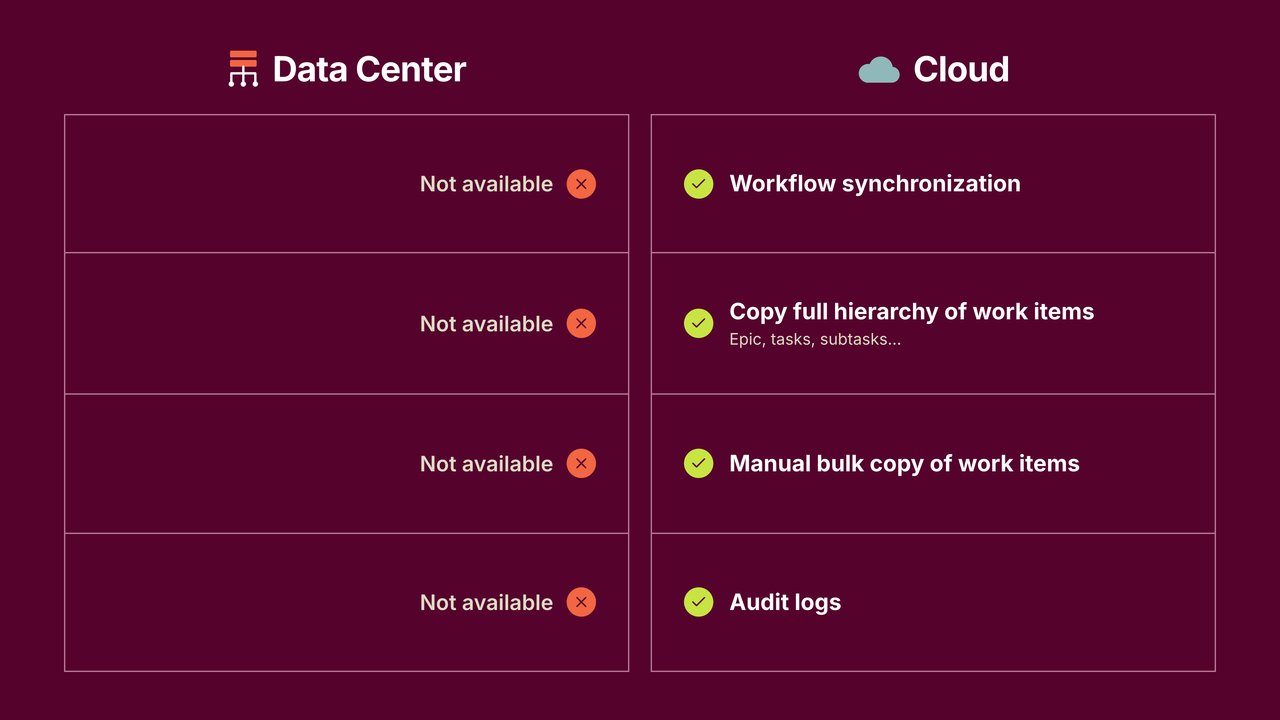
Workflow synchronization is one of the most significant additions. When a linked issue moves through a workflow transition on one project, the connected issue can automatically follow the same transition on another. This is particularly useful in scaled agile environments or service management setups where multiple teams track parallel work.
Automation-triggered recipes are another Cloud-only capability. Via a public REST API, any Jira Automation rule can fire an Elements Copy & Sync recipe as one of its actions, meaning you can trigger an issue copy when a comment is posted, an SLA is breached, a field value changes, or any other condition Automation supports. The recipe runs silently in the background, with no manual input required from the user.
The Cloud version also introduces the ability to copy a full hierarchy of work items, including epics, tasks, and subtasks, in a single operation. Combined with the manual bulk copy feature, this dramatically reduces the overhead of managing recurring project templates or spinning up new workstreams from existing ones.
Finally, audit logs give admins full visibility into every copy and sync operation that has run. When something behaves unexpectedly, or when a compliance review requires documentation, audit logs are the feature you didn’t know you needed until you didn’t have it.
| Feature | Data Center | Cloud |
|---|---|---|
| Workflow synchronization | ❌ Not available | ✅ Available |
| Copy full hierarchy of work items (epic, tasks, subtasks…) | ❌ Not available | ✅ Available |
| Manual bulk copy of work items | ❌ Not available | ✅ Available |
| Audit logs | ❌ Not available | ✅ Available |
How to run the migration with JCMA
The practical tool for executing your Jira cloud migration is the Jira Cloud Migration Assistant, or JCMA. JCMA is a free Atlassian tool that allows you to selectively migrate specific projects, users, and groups from your Data Center instance to Atlassian Cloud, giving you the flexibility to choose exactly what data moves.
Here’s how the process works for Elements Copy & Sync specifically:
Step 1: Install JCMA on your Data Center instance. Navigate to System > Migrate to cloud in your Jira admin panel. JCMA comes pre-installed on newer Jira versions, but verify you’re running the latest release before starting.
Step 2: Install Elements Copy & Sync on your Cloud site. The Cloud version needs to be live and licensed before your app data can migrate into it.
Step 3: Run the app assessment inside JCMA. JCMA will inventory the apps on your Data Center instance and flag which ones have Cloud equivalents. Select Elements Copy & Sync as “Needed in Cloud” during this step. If you’re also moving to Elements Publish or Elements Overview, add those to your plan here.
Step 4: Connect your Cloud site and run a test migration. JCMA supports testing migrations in a cloud sandbox environment, which allows you to validate the migration process before executing it in production. Always test first.
Step 5: Review the migration report. After the test run, review what migrated cleanly and what needs attention. Elements Copy & Sync recipes, field mappings, and configuration data should transfer as part of the app migration stage, which runs after your core Jira data.
Step 6: Run the production migration. Once you’re confident in the results, execute the full migration. The JCMA adds data to a Jira Cloud site without overwriting any existing data, so you can migrate to a new Cloud site or a site that already has content.
Step 7: Validate your recipes on Cloud. After migration, open Elements Copy & Sync on your Cloud site and walk through each recipe. Before activating, check that field mappings are intact and that cloning synchronizations behave as expected.
Check the step by step demo to migrate with JCMA
Is Elements Copy & Sync Cloud secure?
Moving to Cloud does not mean lowering your security bar. Elements Copy & Sync Cloud is certified and audited on the standards your security team expects.
| Assurance | What it means for you |
|---|---|
| Cloud Fortified | Meets Atlassian’s highest Marketplace bar for security, reliability and support. |
| ISO 27001 certified | Our information security management is independently certified. |
| SOC 2 Type II compliant | Our controls are audited over time, not just at a point in time. |
| Data residency in the US and Europe | Choose where your app data lives: the US, Germany or Ireland. |
We’re here to help you migrate
Migrating a tool that sits at the center of your Jira data flows is not something you want to figure out on the fly. The Elements team has built a dedicated migration path with step-by-step guidance tailored to the most common use cases, and a support team available specifically to help Data Center customers through the transition. You can also monitor the security posture of your Cloud environment through the Elements trust center, which provides ongoing visibility into how your data is protected post-migration.
If you’d prefer to see the process in action before committing to a plan, demos and one-on-one booking options are available through our contact page. Whether you’re just beginning to map out your Jira cloud migration or already mid-way through planning, the earlier you loop in the right resources, the smoother the cutover will be.
The Data Center deadline is firm. The feature parity is solid. And the Cloud version of Elements Copy & Sync has more to offer than what you’re leaving behind. Now is the right time to move.
Frequently asked questions
Couldn’t find what you need?
Elements Copy & Sync is compatible with Atlassian’s Jira Cloud Migration Assistant (JCMA). With JCMA you can automatically migrate most of your Operations, Synchronizations, and Fields Mapping, which become recipes with embedded mappings on Cloud.
A few important caveats:
Certain features (Data Panels, Copy to Confluence, Copy to remote instance with old link model, Velocity) are not or not fully migrated and will need manual handling.
JCMA will adapt your configuration “as close as possible” to Cloud concepts.
After migration, you should review and adjust recipes in Cloud to match your exact needs.
- Data Panels → beyond the scope of in Elements Copy & Sync Cloud. Use Elements Overview instead. Note that Confluence data panels are not available on Cloud.
- Copy to Confluence → beyond the scope of in Elements Copy & Sync Cloud. Use Elements Publish instead.
- Copy to remote instance → will not be migrated automatically. Cloud does support partial remote instance creation/sync, but the way instances are linked changed and is not backward-compatible. These configurations must be recreated manually.
- Velocity → not supported on Cloud. During migration, Velocity code is copied as a dynamic value but is not functional. You must replace it using Cloud configuration options (smart values, fields, etc.).
Don’t worry. This message is a reminder that some features (Data Panels, Copy to Confluence, Copy to remote instances) are not supported. You can click “Continue without resolving warnings” and complete your migration if the warnings only concern Elements Copy & Sync. Once the JCMA migration is done, you can manually implement the unsupported features with Elements Publish and Elements Overview.
Jira Automation is a powerful tool for straightforward scenarios. However, for more advanced workflows it may require multiple rules, be subject to execution limits, and become harder to maintain over time. Elements Copy & Sync is the right fit for complex scenarios requiring full issue cloning, continuous bidirectional synchronization, and scalable usage across projects or Jira instances.