

Elements Copy & Sync vs. Jira Automation: Which one scales with you?
When managing complex processes in Jira, automation is essential. Atlassian’s Jira Automation feature promises a no-code approach to repetitive tasks, but when real-world use cases demand cross-instance cloning, syncing custom fields, and maintaining transparency, its limitations begin to show.
That’s where Elements Copy & Sync comes in a powerful extension to your Jira toolbox. Let’s break down why this purpose-built app may be the better fit for your workflows, especially when scalability, simplicity, and reliability are non-negotiable.

Automating workflows in Jira: the basics
Jira Automation is a native feature in Jira that lets users streamline their work by setting up rules to automatically trigger actions, like updating fields, sending notifications, or transitioning issues. It’s designed to help teams save time and reduce manual effort with a simple, no-code interface.
Elements Copy & Sync is an Atlassian marketplace app built to make issue cloning and synchronization seamless. Whether it’s copying entire epics, syncing support tickets across teams, or templating full project structures, Elements Copy & Sync gives users a flexible, intuitive way to automate complex workflows. With recipes that define what to copy and when, teams can stay aligned and efficient without writing a single line of code. It’s automation that simply works, regardless of how complex your data or structure may be.
1. Scaling beyond the limits of Jira Automation
Jira Automation no longer counts rule executions. Since Atlassian’s 2026 pricing update (3rd of December), it counts steps: every trigger, condition, action, branch and loop that runs, including a trigger that finds no match. Each plan includes a monthly step allowance, pooled across your organization: 150 steps on Free, then 400 per user on Standard, 750 on Premium and 1,000 on Enterprise.
What happens when you reach it depends on your settings. With extra usage turned off, your rules stop running until the allowance resets, leaving critical workflows frozen mid-process. With extra usage turned on, rules keep running and, from December 3, 2026, extra steps are billed.
Cloning and syncing are among the most step-hungry use cases. Copying an epic with its child work items relies on branches and loops. Keeping copies in sync means rules that fire on every update, comment or transition. And a single bulk update can trigger hundreds of rule runs at once, a concern many admins have raised on the Atlassian Community.
In contrast, Elements Copy & Sync offers unlimited cloning and syncing across all tiers. Recipes run in the app, so copying and ongoing synchronization don’t consume Automation steps. Whether you’re escalating support work items, syncing tasks across projects, or duplicating large hierarchies, high usage never stops your work. The result: fewer steps used, and lower Automation costs.
How Atlassian calculates Automation usage
2. Simplicity that saves time
While Jira Automation offers a robust rule builder, the complexity ramps up fast. Implementing an issue escalation, for example, can require up to 10 separate rules just to synchronize key fields like comments, status, and priority. Each rule is an opportunity for something to go wrong and for valuable time to be lost in debugging.
Elements Copy & Sync solves this with simplicity. A single recipe can replace multiple automation rules, with an intuitive UI that even non-technical users can handle. No scripting, no advanced Jira training just click, configure, and go. That means more time spent on meaningful work, and less on managing automation complexity.
3. Cross-instance cloning without the pain
One of the biggest limitations of Jira Automation is its inability to natively support cross-instance operations. If your teams span multiple Jira instances, setting up workflows between them requires manual webhooks, API scripting, and duct-tape-level creativity.
Elements Copy & Sync supports cross-instance cloning and syncing out of the box. Whether you’re working with external contractors or managing separate dev and support environments, this feature turns a daunting task into a drag-and-drop setup. Your work continues seamlessly, no matter where the issues live.
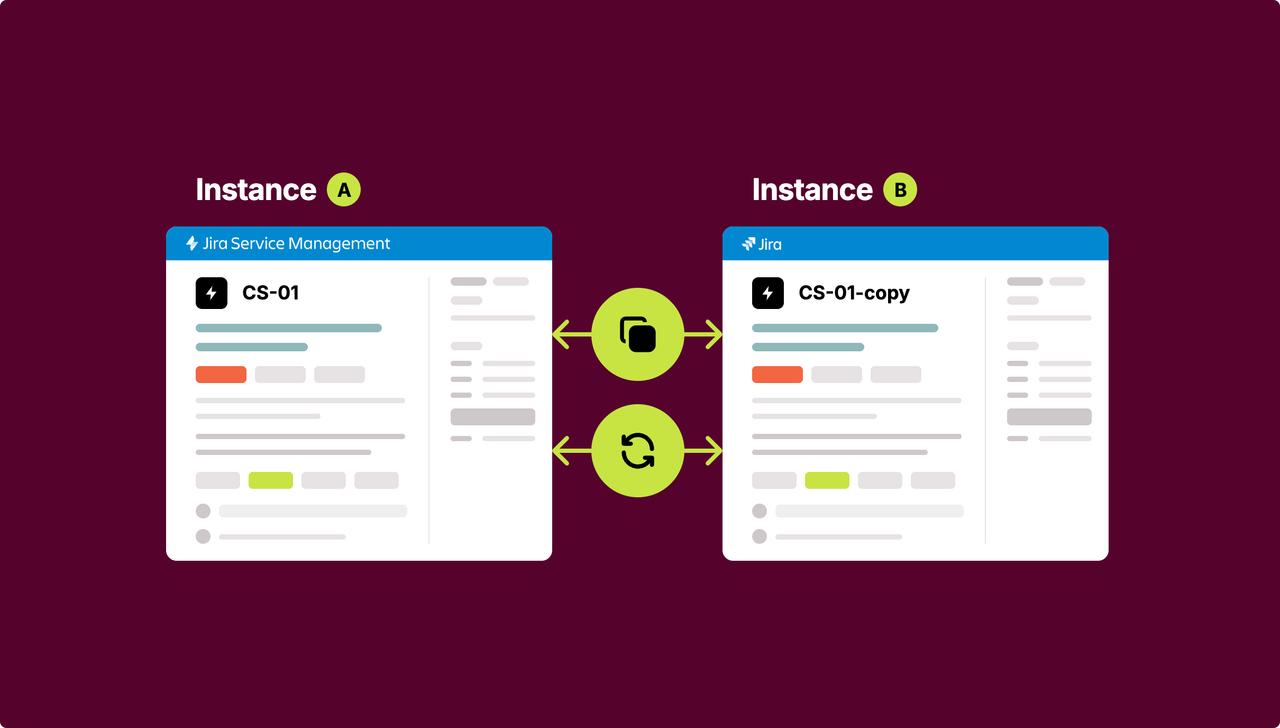
Discover how to clone issues across separate Jira instances
4. No more field frustrations
Advanced use cases often break down when you try to clone complex issue field types with Jira Automation. Comments, attachments, and custom fields either require advanced JSON editing or fail entirely. That might be fine for developers but not for project managers, support teams, or IT agents who just need things to work.
Elements Copy & Sync supports all standard and custom fields, including comments and attachments. What’s more, it ensures the data is copied cleanly and completely, preserving context and auditability. Your workflows stay accurate, and your data remains trustworthy.
Check all the fields that can be cloned
5. Clean recipes vs. rule chaos
One of the hidden costs of Jira Automation is maintenance. As your rules grow in number and complexity, they start interfering with each other triggering unintended automations and becoming harder to debug. Over time, what started as a clean automation setup turns into a fragile web of dependencies.
Elements Copy & Sync avoids this entirely. Recipes are isolated, transparent, and easy to maintain. There’s no rule interference, no event loop surprises just clear, reliable behavior that scales with your team’s needs. You can continue building new automations without worrying about breaking what already works.
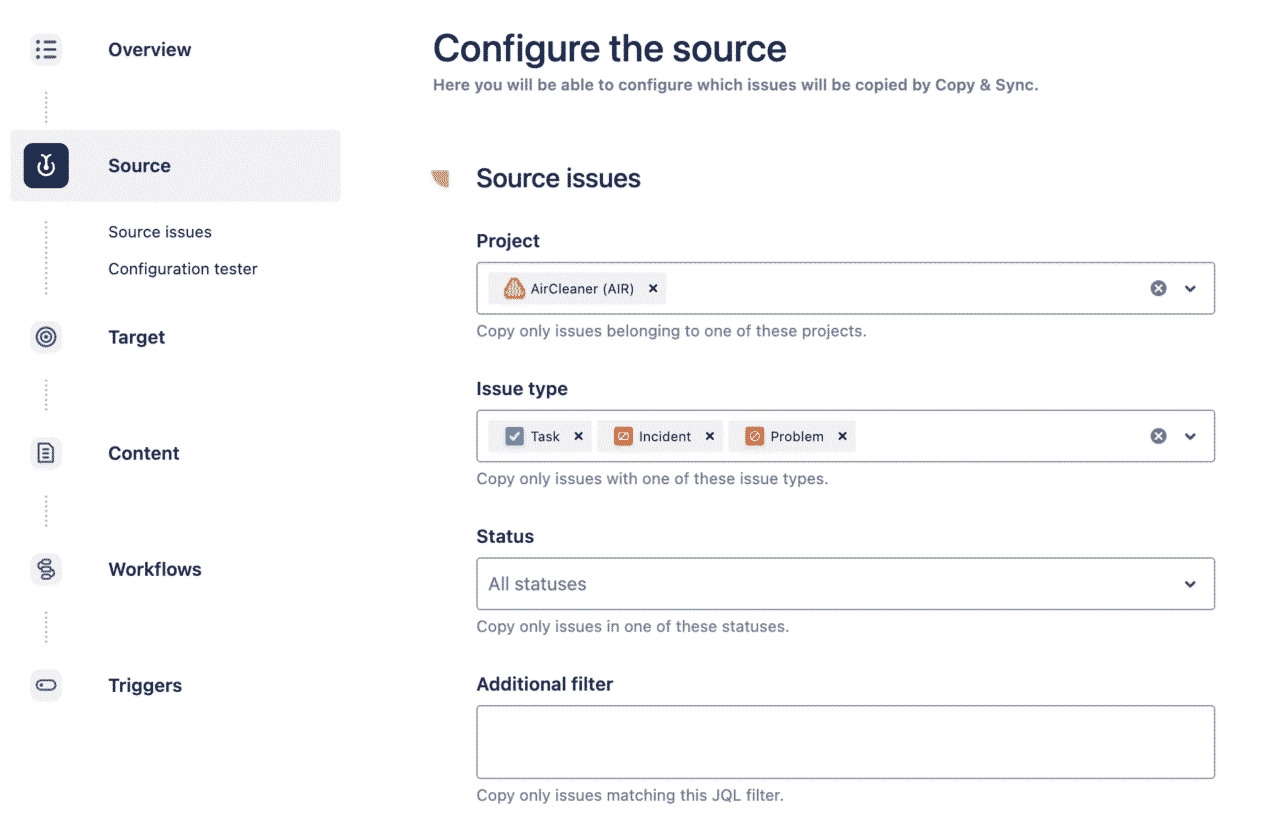
6. Better together: run Elements Copy & Sync from Jira Automation
Choosing Elements Copy & Sync doesn’t mean giving up Jira Automation. Elements Copy & Sync is now a native action in Jira Automation: Actions → Other apps → “Elements Copy & Sync – Run a recipe”.
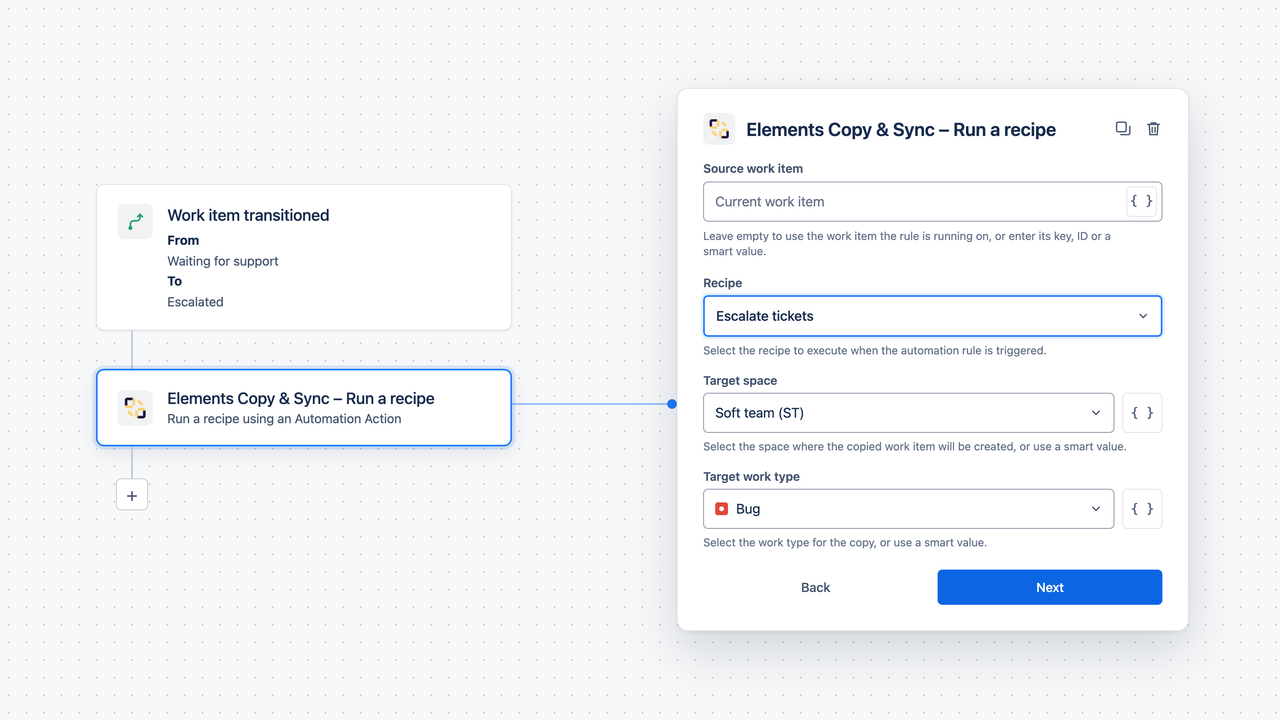
Running a recipe from a rule used to take an API token, an actor setup and a “Send web request” step. Now, an admin connects Elements Copy & Sync to Automation once, and adding a recipe to any rule takes a few clicks.
- Any trigger: work item created or transitioned, manual, or scheduled with JQL.
- Dynamic source and target: use smart values to decide what gets copied and where.
- Clear accountability: recipes run as the current user or the rule actor, and every run is logged in Elements Copy & Sync Activity Logs with an “Automation” trigger.
- Admin control: choose which recipes can be used from Automation.
It also keeps your rules lean. Instead of a chain of branches and actions to clone a work item with its child items, comments and attachments, the rule calls the recipe in a single action. Fewer steps per run, and lighter Automation usage.
How to trigger recipes with Automation
7. Real use cases, ready to go
Let’s take a look at a few issue-based scenarios:
| Use Case | Jira Automation | Elements Copy & Sync |
|---|---|---|
| Issue escalation | ⚠️ Requires 10+ rules, many steps per run | ✅ One recipe, unlimited use |
| Cross-instance workflows | ⚠️ Manual scripting and webhooks | ✅ Native support, no code |
| Issue templating | ⚠️ Complex rules with branches and loops, each using steps | ✅ Simple setup with hierarchy preserved |
| Bulk cloning (100+ issues) | ⚠️ Fragile, and every issue uses steps | ✅ One-click operation |
| Syncing comments & attachments | ⚠️ Rules fire on every update, using steps continuously | ✅ Fully supported natively |
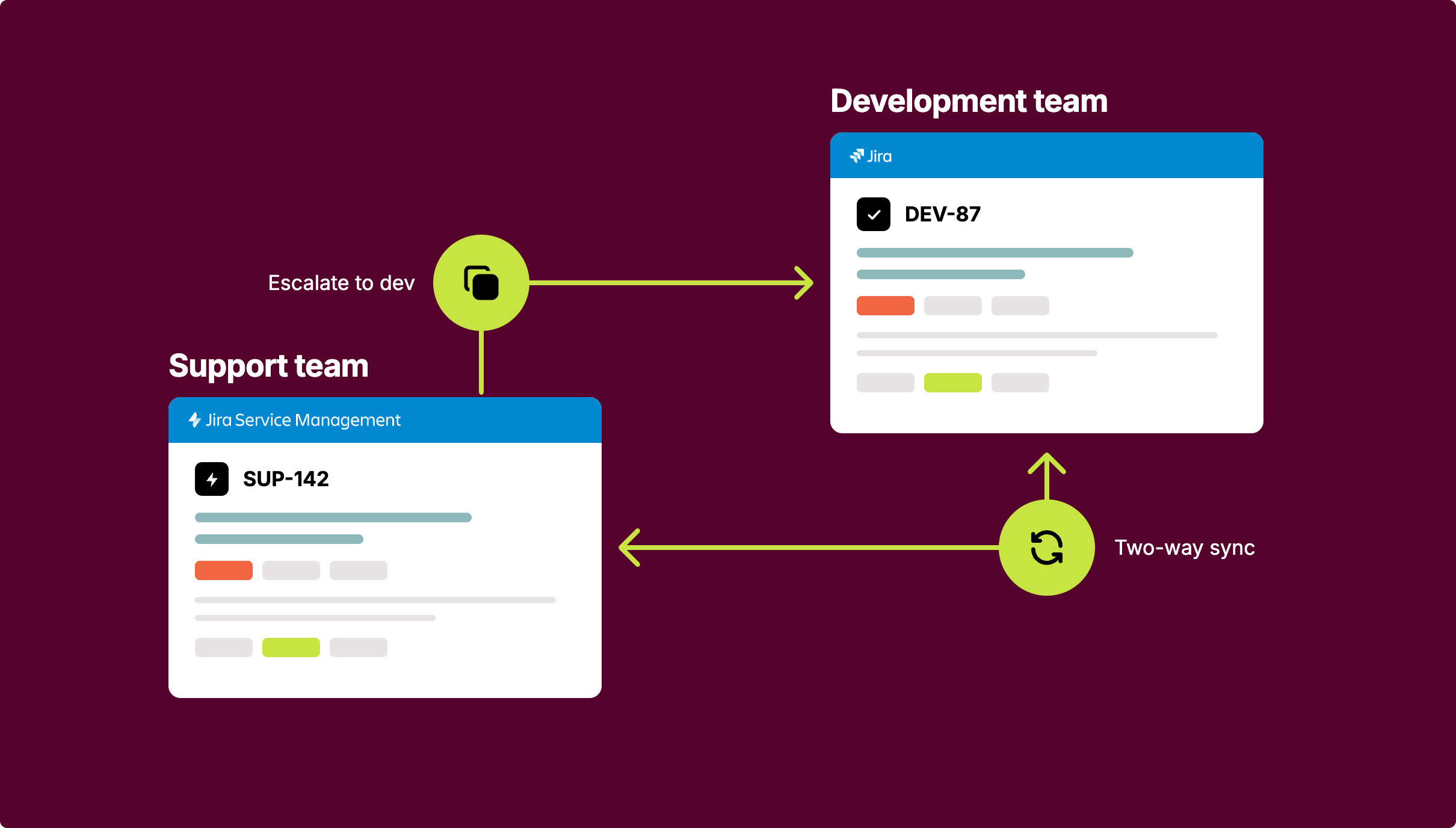
One of the most common and valuable use cases is issue escalation for instance, when a customer support task in Jira Service Management needs to be escalated to the development team in Jira Software. With Jira Automation, implementing this requires a series of interconnected rules: one to clone the issue, another to link it, and additional rules to synchronize fields like priority, status, or assignee. If you want to sync comments as well, you’ll need separate rules that rely on smart values and JSON scripting, which can become fragile and difficult to maintain over time.
With Elements Copy & Sync, this entire escalation flow can be handled by a single recipe in the app. You define what fields to clone, which project the escalated issue should be copied to, and whether updates like comments or status changes should stay in sync. It’s a plug-and-play solution designed for support and development teams to stay aligned without the need for a Jira admin or automation expert to manage and troubleshoot it.
Read more on how to escalate an issue with Elements Copy & Sync
8. Overcoming marketplace concerns
It’s true: some companies hesitate to install marketplace apps due to concerns around data residency, compliance, and security. Jira automation, being native to Atlassian, has fewer adoption barriers.
But Elements Copy & Sync is built with enterprise-readiness in mind. It supports secure configurations, respects data governance, and is trusted by some of the world’s most regulated industries. The app is also Cloud Fortified and SOC 2 Type II certified, ensuring the highest standards of security, compliance, and reliability for teams operating in regulated or enterprise environments.
9. Pricing considerations
Jira Automation is included in every Jira plan, but it now comes with a monthly step allowance. Heavy cloning and syncing can push you past it: either your workflows stop, or you pay for extra usage. Either way, your automation becomes harder to plan for.
Elements Copy & Sync involves a license cost, but usage is unlimited and predictable. And when you trigger recipes from Jira Automation, each run takes a single action step instead of a chain of branches and actions.
10. A trusted choice for ITSM teams
From IT agents handling service escalations to project managers managing epic hierarchies, Elements Copy & Sync brings clarity, control, and power to teams who live in Jira every day. Whether you’re building workflows across teams or replicating consistent project structures, this tool makes it easier to get your tasks done accurately, and at scale. While Jira Automation tries to cover everything with general-purpose tooling, Elements Copy & Sync is purpose-built to solve real, recurring Jira pain points.
11. Conclusion: when to choose Elements Copy & Sync over Jira Automation
| Strengths | Elements Copy & Sync | Jira Automation |
|---|---|---|
| Easy configuration | ✅ Set recipes in a few minutes without technical skills. | ⚠️ Requires technical skills to make it work for complex workflows. |
| Scalability | ✅ No limits in the number of recipe runs. | ⚠️ Monthly step allowance on every plan. Rules stop or extra usage is billed once it’s reached. |
| Cloning of complex field types | ✅ Clone a wide range of fields including comments and attachments. | ⚠️ Fields like comments aren’t fully supported, and attachments may fail to copy. |
| Synchronization | ✅ One or two-way sync available. | ✅ Can synchronize work items. |
| Cross-project cloning & sync | ✅ Clone and sync across any Jira and JSM project. | ⚠️ Pretty hard to implement and to maintain. |
| Cross-instance cloning & sync | ✅ Clone & sync across separate instances. | ⚠️ Cross-instance workflows involves manual webhook setups and scripting. |
| Pricing | ✅ Per tier app cost. | ⚠️ Included in Jira plans, but usage above the allowance is billed from December 2026. |
| Security | ✅ Cloud Fortified, SOC 2 Type II, Data Residency. | ✅ Atlassian native feature. |
| Support & assistance | ✅ Detailed documentation. Dedicated partner Manager & support in US and Europe time zones. | ⚠️ Atlassian Community and documentation but hard to find the information. |
Use Jira Automation when:
- You need simple task automation
- Your rules stay well within your monthly step allowance
- You’re only working within a single instance
Choose Elements Copy & Sync when:
- You need reliability across multiple Jira instances
- You want to eliminate execution limits
- You value simplicity, even for complex operations
- You manage hierarchical templates, escalations, or external collaborations
- You want to keep your Automation usage under control
- You want both: Automation triggers the rule, Copy & Sync does the copying and syncing
At the end of the day, it isn’t an either/or choice. Use Jira Automation for what it does best, and let Elements Copy & Sync handle cloning and syncing, from inside your rules.
Try Elements Copy & Sync for free for 30 days