

TL;DR
Jira Confluence integration: Linking Jira and Confluence keeps work items, docs, reports and roadmaps in one place instead of scattered across tools.
Display Jira issues in Confluence: Show a single issue, an issue count, or a filtered table on any Confluence page via the Jira Issues macro.
Two-way links: Connect a Jira work item to a Confluence page and back, so context follows the work.
Publish Jira data to Confluence: Elements Publish turns a work item — fields, attachments and labels — into a Confluence page for knowledge bases or post-mortems.
Native vs. app: Atlassian covers display, links and charts natively; publishing full work item data to pages needs Elements Publish (Cloud) or Elements Copy & Sync (Data Center).
How do you use Jira and Confluence together? A Jira Confluence integration links the two Atlassian tools so task data and documentation live side by side. In practice, you can display Jira issues on a Confluence page as a single issue, a count, or a filtered table; embed Jira Charts and roadmaps into reports; add shortcuts and two-way links between a Confluence space and a Jira project; and create Jira work items straight from a Confluence page. To go further and publish full work item data — fields, attachments and labels — into a Confluence page, an app such as Elements Publish handles it.
Trello, Bitbucket, Opsgenie: you’re probably familiar with tools from the Atlassian suite, but today we’ll take a deeper look at the using Jira and Confluence together. Confluence is great for working on content, and Jira is built for task tracking, but together they provide even more help to your team. If your team is only working with Jira or just with Confluence, you might wonder how you can use them together. We’ll take a closer look at 8 ways you can use Jira and Confluence together and bring out the best in the tools and your team.
Using Jira and Confluence together
Integrate tools to centralize organizational data, avoiding scattered files and emails. Jira and Confluence streamline management for various content types.This integration is supported by a variety of templates that make setup quick and easy, enhancing both Confluence and Jira practices.
Benefits of using Jira and Confluence together
- Enhanced Cross-Team Communication: Linking Jira to Confluence ensures that technical details housed in Jira are readily accessible to teams operating within Confluence. This connectivity not only simplifies access but also fosters collaboration across technical and non-technical groups. According to Atlassian, “66% of Jira software customers who use confluence said that it helped them to boost communication between development and non-technical teams.”
- Increased Speed of Delivery: By replacing other documentation tools like SharePoint or Google Docs with Confluence, teams using Jira can accelerate project execution. Seamless access to necessary documentation within Confluence allows software development teams to operate more efficiently. According to Atlassian, “76% of Jira Software customers said they shipped projects faster after adding Confluence.”
- Improved Reporting for Business Teams: Jira’s robust reporting capabilities are well-utilized by developers and project managers who track progress with tools like sprint burn-down charts and status pie charts. By integrating these reporting features into Confluence, business teams gain easier access to critical data without needing to navigate complex interfaces, thus making strategic information more accessible and actionable.
Streamline your project management by connecting Jira and Confluence.
How to use confluence and Jira together
Here are eight practical ways to integrate Confluence and Jira to enhance team collaboration. These examples will demonstrate how using these tools in tandem can streamline communication, accelerate project delivery, and strengthen team unity.
Example 1: Displaying Jira issues on a Confluence page
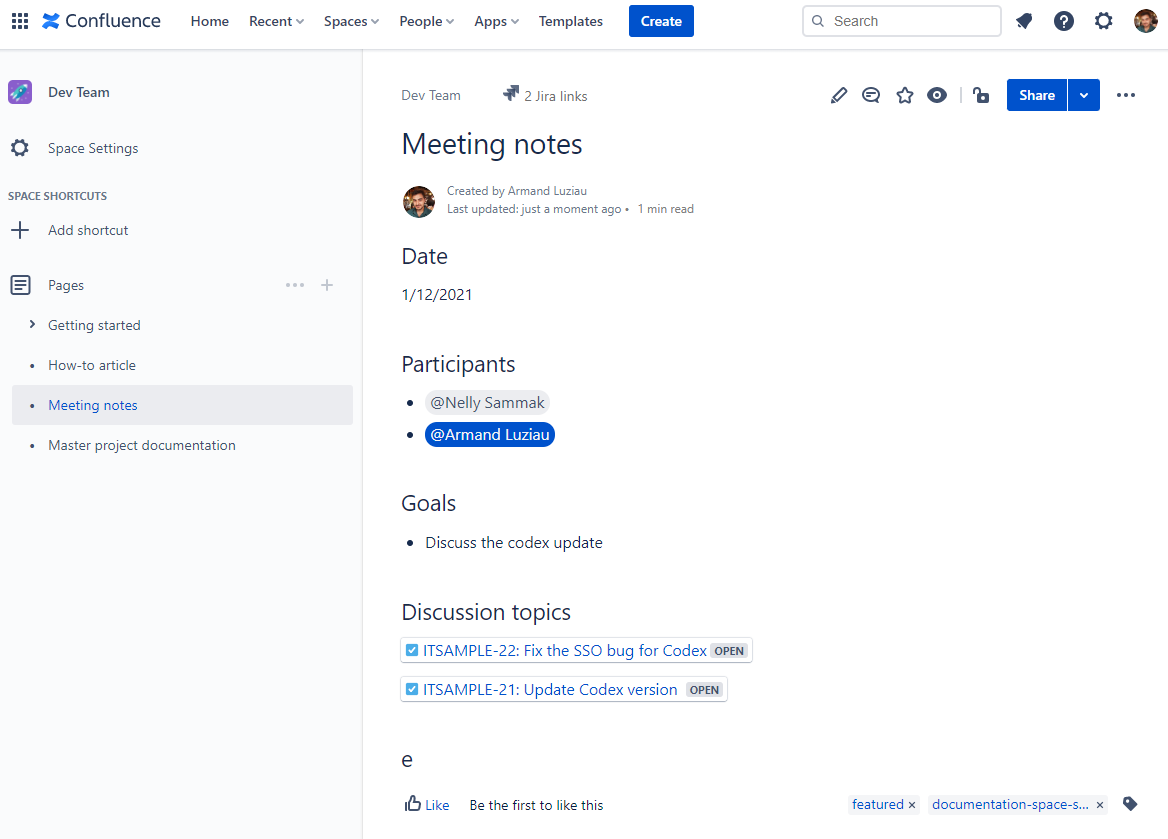
Confluence enables you to showcase details from Jira issues. You have the option to display individual issues, an issue count (based on a filter), or a table (also based on a filter). When you opt to display Jira issues in a table format on Confluence, you can tailor the display settings and select the specific data you wish to view and its arrangement, including the issue key, summary, due date, assignee, etc. By integrating Jira issues individually or via a filter onto a Confluence page, tasks are visible alongside related notes or project documentation. No jumping back and forth between tools!

Example 2: Create reports with Jira Charts
Enhance your retrospective pages or end-of-quarter reports by incorporating Jira Charts into your Confluence pages. This visual integration allows for impactful presentations and comprehensive data analysis.

Jira Charts will assist you in emphasizing essential data from Jira and sharing your findings within context by embedding them alongside explanations, useful macros, and supporting images or illustrations.
Example 3: Publish your Jira Roadmap to Confluence
Showcase your Jira roadmap on Confluence to provide all departments with access, allowing them to visualize team progress and enhance transparency regarding your product roadmap.

Embed your roadmap in Confluence for a comprehensive view while adding notes, wireframes, or other essential team information.
Discover how to maximize the use of Jira and Confluence with Elements Publish.
Example 4: Add a shortcut to a Jira project on Confluence
Integrate a direct link from a Confluence space to one or more Jira projects to facilitate quicker navigation. This Jira Confluence integration allows users to access the relevant Jira project directly from the Confluence space they are using, reducing the number of clicks required.
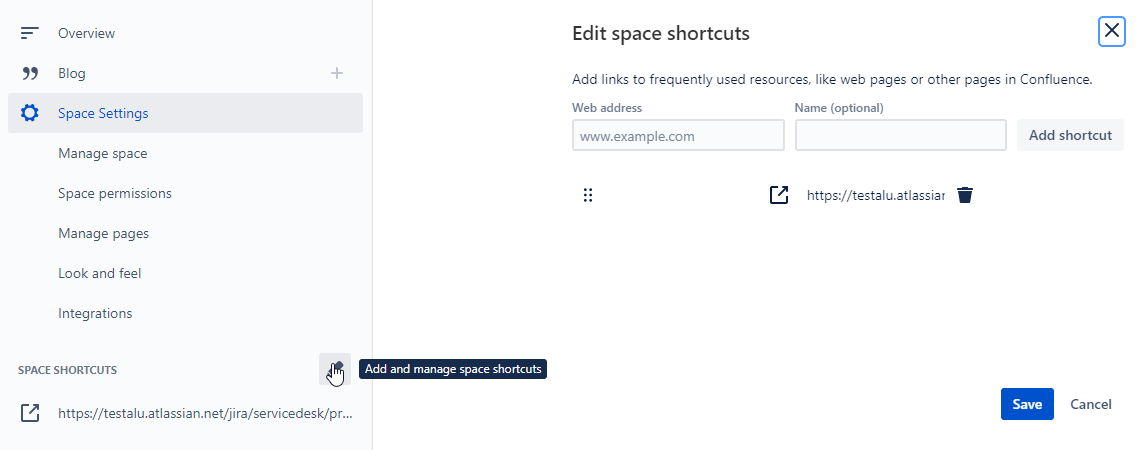
If your Jira instance hosts dozens or hundreds of projects, this shortcut will be highly valued by your users.
Example 5: Create issues directly from Confluence
Enhance your workflow with the ability to create Jira issues directly within Confluence. Highlight, select the issue type, and choose the project to create it.
This seamless Jira Confluence integration is ideal for those collaborating on Confluence pages that list tasks, product requirements, or bugs, allowing for swift conversion into Jira tasks. This feature streamlines processes, making it a best practice in Confluence integrations.
Example 6: Add links to Confluence pages from an issue
As your use of Confluence expands, navigating the increasing number of spaces and pages can become challenging for team members.
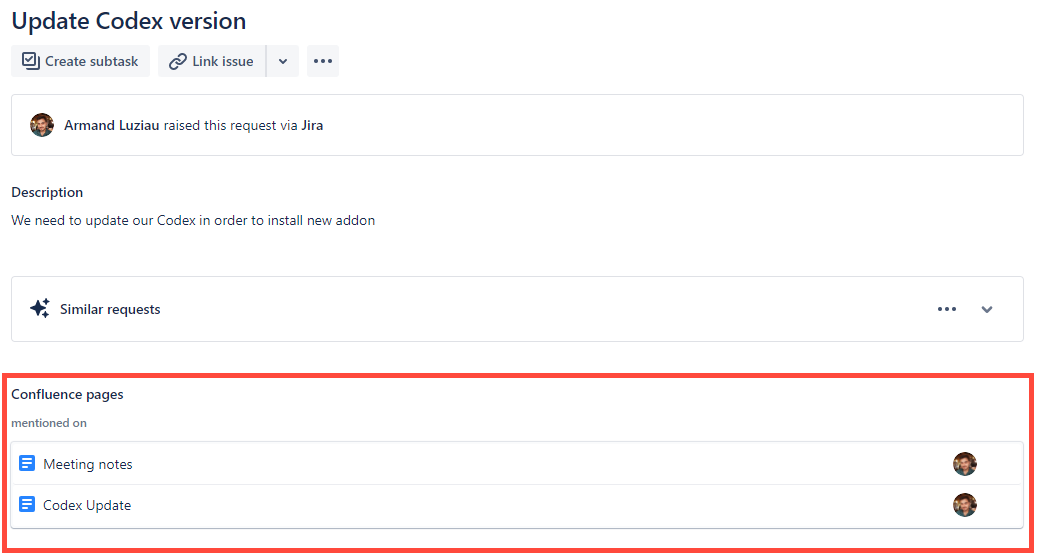
By implementing a direct link from a Jira issue to a related Confluence page, you facilitate easy access to additional information, reference materials, or relevant documents for anyone working on the issue. This Jira and Confluence integration ensures that team members can contribute effectively to the correct documents, enhancing productivity and ensuring continuity across platforms.
Example 7: Access Confluence project pages directly from Jira Software
When working within Jira Software, accessing relevant Confluence pages doesn’t require switching platforms. You can explore existing project pages directly from your Jira Software project thanks to the seamless Jira Confluence integration. Additionally, when you link your Jira Software project to a Confluence workspace, you can easily create a new, empty page. This integration enhances efficiency by allowing continuous access between Jira and Confluence, streamlining workflow and improving project management practices.

Similarly, you can compose a public Knowledge Base article directly from a request by enabling this feature in JSM.
Example 8: Publish issue data to Confluence
Want to turn your Jira issue into a Confluence page? Or include certain issue data on a page without having to copy & paste each field or download and re-add attachments? What about archiving an incident for a post-mortem? You can publish issue data, including attachments and labels, to a Confluence page with the Cloud app Elements Publish.
If you are on Data Center the on premise version of Elements Copy & Sync allows you to create Confluence pages with issue data.
Get your team using Jira and Confluence together
Enhance cross-team communication, accelerate project delivery, and streamline information retrieval by integrating Jira and Confluence. If you want to go further into the Jira and Confluence integration, check out the guides provided by Atlassian on using Confluence with Jira Software or Confluence with Jira Service Management. To learn more about publishing issue data to Confluence pages, check out our walk through of Elements Publish.
Frequently asked questions
Couldn’t find what you need?
Connects Jira (task tracking) with Confluence (documentation) so the two share data: surface issues in pages, link work items to docs, embed charts and roadmaps, and publish work item data to Confluence without manual copy-paste.
Use Confluence’s Jira Issues macro: a single issue, an issue count from a filter, or a filtered table where you pick the columns (issue key, summary, due date, assignee).
Yes. Highlight text on a page, pick the issue type and project, and create a Jira issue — useful for turning task lists, requirements or bugs into work items without leaving Confluence.