

TL;DR
Sync Jira issues across projects: Elements Copy & Sync connects Jira Service Management and Jira so work items stay aligned automatically.
Recipe-based setup: A recipe defines the source and destination projects, the trigger (creation or status change), and the fields to sync.
Fields, comments, attachments: Map fields (e.g. JSM “Summary” → Jira “Title”) and sync comments and attachments between linked work items.
One-way or two-way: Updates can flow in a single direction or both, keeping support and dev teams consistent.
Test before rollout: Create test work items to confirm fields, comments, and attachments sync correctly before going live.
To sync Jira issues between Jira Service Management (JSM) and a Jira project, you set up a recipe in Elements Copy & Sync that maps the two projects and the fields you want aligned. When a work item is created or its status changes in JSM, the app copies and keeps it in sync with the matching work item in Jira, including fields, comments, and attachments, one-way or two-way. You choose the trigger, the field mapping, and the direction. This keeps support and development teams on the same, current information without manual copying, so nothing is duplicated or lost between projects.
Why synchronizing Jira Service Management and Jira issues?
Organizations often use Jira Service Management for handling customer support and Jira for development work. Although these platforms are tailored for different use cases, there’s often significant overlap in the issues managed by each.
For example, a bug reported by a customer in JSM might require attention from the development team in Jira. Without a robust synchronization process, this can lead to miscommunication, duplicated efforts, and delays in resolving issues.
Utilizing Jira to sync issues between projects ensures both teams have access to the most up-to-date information, enhancing collaboration and speeding up issue resolution. Elements Copy & Sync facilitates this by automating the synchronization of fields, comments, attachments, and more between JSM and Jira projects.
Setting up synchronization with Elements Copy & Sync
- Install and configure Elements Copy & Sync:
First, ensure that the Elements Copy & Sync app is installed and properly configured on your Jira instance. The app is available on the Atlassian Marketplace, where you can find installation instructions.
- Define synchronization recipes:
A recipe in Elements Copy & Sync defines the rules for how issues will sync between two Jira projects. When creating a recipe, you’ll specify the source and destination projects, the trigger for synchronization (e.g., issue creation or status change), and the fields to sync.
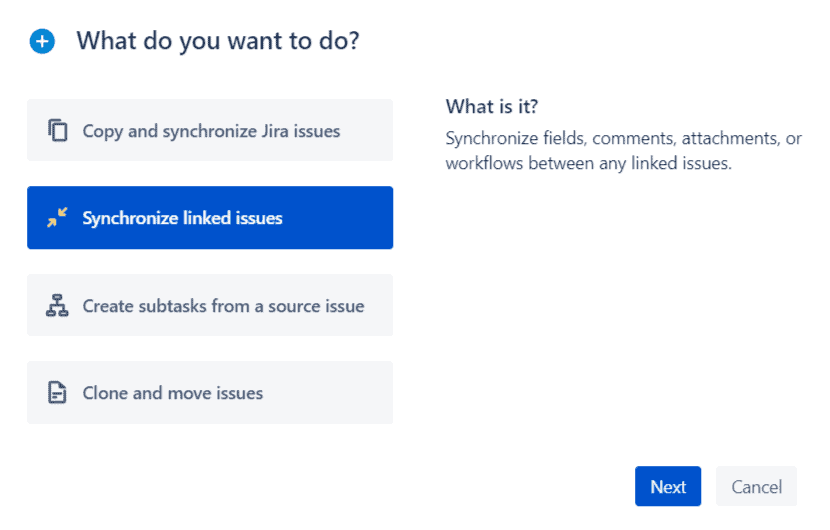
- Map fields between projects:
One of the key steps in setting up synchronization is mapping fields between JSM and Jira projects. For instance, you might map the “Summary” field in JSM to the “Title” field in Jira, ensuring that any updates in one project are reflected in the other.
- Enable comment and attachment syncing:
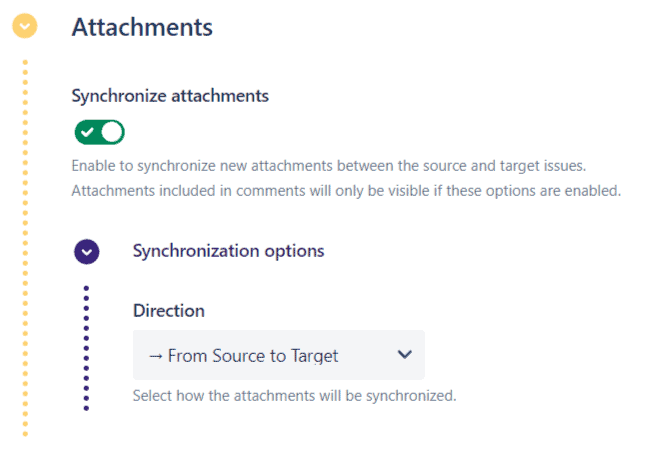
Elements Copy & Sync allows you to sync comments and attachments as well, which is especially helpful when multiple teams are collaborating on the same issue. By enabling comment syncing, any comment added to an issue in JSM will automatically appear in the corresponding Jira issue.
- Test the synchronization:
Before rolling out your synchronization setup to your team, it’s crucial to test the configuration. Create test issues in both projects to verify that all fields, comments, and attachments are syncing correctly. This step helps catch any potential issues before they affect your live data.
- Monitor and adjust synchronization settings:
Once synchronization is live, monitor its performance to ensure everything works as expected. You may need to adjust your synchronization settings over time, such as adding new fields or changing trigger conditions as your workflows evolve.
Check Elements Copy & Sync documentation
Benefits of using Elements Copy & Sync to sync Jira issues across projects
- Improved collaboration: By syncing relevant information between JSM and Jira, you enhance collaboration between support and development teams. Everyone has access to the same data, reducing the need for back-and-forth communication and minimizing the risk of errors.
- Time savings: Automating the process of syncing Jira issues saves your teams significant time, avoiding the need to manually copy and update issues between projects.
- Consistent data: Elements Copy & Sync ensures that data consistency is maintained across projects. When a field is updated in one project, it is automatically reflected in the other, reducing discrepancies and ensuring all teams work with the most accurate information.
- Customizable synchronization: The flexibility of Elements Copy & Sync allows you to customize your synchronization rules to fit specific needs. Whether syncing all fields or only specific ones, the app can be tailored to your workflow.
- Scalability: As your organization grows, so do your projects. Elements Copy & Sync scales with your needs, managing synchronization across multiple projects and even across different Jira instances.
Read how to sync Jira issues for better project management
Best practices for syncing Jira issues across projects
To maximize the effectiveness of syncing Jira issues between projects with Elements Copy & Sync, consider the following best practices:
- Regularly review and update recipes: As your projects evolve, your synchronization needs may change. Regularly review and update your synchronization recipes to ensure they continue to meet your requirements.
- Communicate with your team: Ensure all relevant team members understand how synchronization works, as well as what fields, comments, and attachments are being synced. This avoids confusion and keeps everyone aligned.
- Use naming conventions: Clearly name your synchronization recipes and mappings. This makes it easier to manage and update them as needed.
- Leverage reporting: Use Jira’s built-in reporting tools to monitor the effectiveness of your synchronization setup. Look for any discrepancies or issues that may arise and address them promptly.
Conclusion
Synchronizing issues between Jira Service Management and Jira is essential for organizations that rely on both platforms to manage different aspects of their work. By using Elements Copy & Sync, you can automate this process, ensuring that issues are consistently and accurately synchronized across your projects. This not only improves collaboration and communication between teams but also saves time and reduces the risk of errors.
If you’re looking to streamline your workflows and keep teams in sync, consider implementing Jira issue sync across projects with Elements Copy & Sync today.
Frequently asked questions
Couldn’t find what you need?
Install Elements Copy & Sync, then create a recipe that sets the JSM project as the source and the Jira project as the destination (or the reverse). Define the trigger — work item creation or a status change — and map the fields to keep aligned. From then on, syncing happens automatically.
A recipe is the set of rules that controls how work items sync between two projects: which projects are linked, what triggers the sync, which fields are mapped, and whether comments and attachments are included. You can create several recipes for different project pairs and workflows.
Yes. Alongside fields, Elements Copy & Sync can sync comments and attachments, so a comment added on a JSM work item appears on the linked Jira work item. This is useful when support and development teams collaborate on the same request.