

TL;DR
No native feature: Jira has no built-in “Copy Attachments” button, so you rely on manual upload, cloning, or automation.
Manual method: Download attachments from the source work item and re-upload them to the target — simple but slow and error-prone.
Clone method: Using More > Clone with “Clone Attachments” copies files to a new work item, but not to an existing one.
Automation rules: Jira automation can copy attachments on a trigger, but setup is complex and admin-only.
Elements Copy & Sync: Copies and keeps attachments in sync between work items — across projects, with no-code recipes.
Jira has no built-in “Copy Attachments” feature, so copy attachments in Jira means choosing one of three approaches: manually downloading and re-uploading files, cloning a work item together with its attachments, or configuring a Jira automation rule. Each native method works for simple cases but becomes slow or limited at scale. For teams that need to copy attachments between many work items — or keep them in sync automatically — Elements Copy & Sync handles it with no-code recipes. Below, we cover every native method, its limits, and the automated alternative.
Does Jira have a built-in way to copy attachments?
Jira does not provide a built-in “Copy Attachments” feature. There are, however, three native workarounds.
Method 1: How do you copy attachments manually in Jira?
- Open the source Jira issue.
- Navigate to the “Attachments” section.
- Download the attachments to your computer.
- Open the destination issue where you want to clone the attachments.
- Select “Add Attachment” and upload the files.
Pros:
✔ Simple and does not require additional configuration.
✔ Works for all Jira users.
Cons:
✖ Time-consuming, especially for multiple attachments.
✖ Risk of missing files or uploading incorrect versions.
Method 2: How do you copy attachments by cloning a work item?
- Open the issue with the attachments.
- Click More > Clone.
- Select “Clone Attachments.”
- Click “Create.”
Pros:
✔ Faster than manual download & upload.
✔ Ensures attachments remain linked to the issue.
Cons:
✖ Does not work when moving attachments to an existing issue.
✖ Requires deleting unnecessary cloned tickets.
Method 3: How do you copy attachments with Jira automation rules?
You can set up Jira automation rules to clone attachments when issues transition between statuses.
- Go to Project Settings > Automation.
- Click Create Rule and set a trigger (e.g., “When an issue is updated”).
- Add an action: Edit issue fields and select “Attachments.”
- Configure the rule to copy attachments from one issue to another.
Pros:
✔ Works automatically for defined workflows.
✔ Saves time compared to manual methods.
Cons:
✖ Complex setup; requires Jira admin access.
✖ May not cover all use cases
What are the limits of native Jira attachment methods?
While the above methods can work, they come with significant drawbacks:
🚫 No direct clone feature – Users must manually download and upload files.
🚫 Workflow dependency – Jira automation works only within predefined workflows.
🚫 No bulk attachment cloning – If you need to clone multiple attachments across multiple issues, it quickly becomes a tedious task.
🚫 Higher risk of errors – Manual handling increases the chances of missing or misplacing files.
For teams dealing with large volumes of attachments, a more efficient and reliable solution is necessary.
How do you copy attachments in Jira with Elements Copy & Sync?
Elements Copy & Sync is a powerful Jira add-on that allows users to clone attachments seamlessly between issues without manual work.
How it works
The app will allow you to automate the process of cloning attachments between Jira issues with simple, no-code configuration.
Follow the steps
- Install the Elements Copy & Sync App
- Go to Atlassian Marketplace and install the app.
- Set up a recipe
- Create the rule: When an issue is created, transitioned, or updated, attachments from a source issue should be copied.
- Select the fields to copy
- Choose to clone attachments along with other issue fields like comments, links, or assignees.
- Sync attachments automatically
- Unlike Jira’s native options, the app doesn’t just copy attachments once—you can configure it to sync attachments between linked issues. This means that if new attachments are added to the source issue, they will automatically be copied to the target issue, ensuring both stay up to date.
- Test & automate the process
- Run a test to ensure that your configuration is correct. Once confirmed, the rule will work automatically whenever the trigger conditions are met.
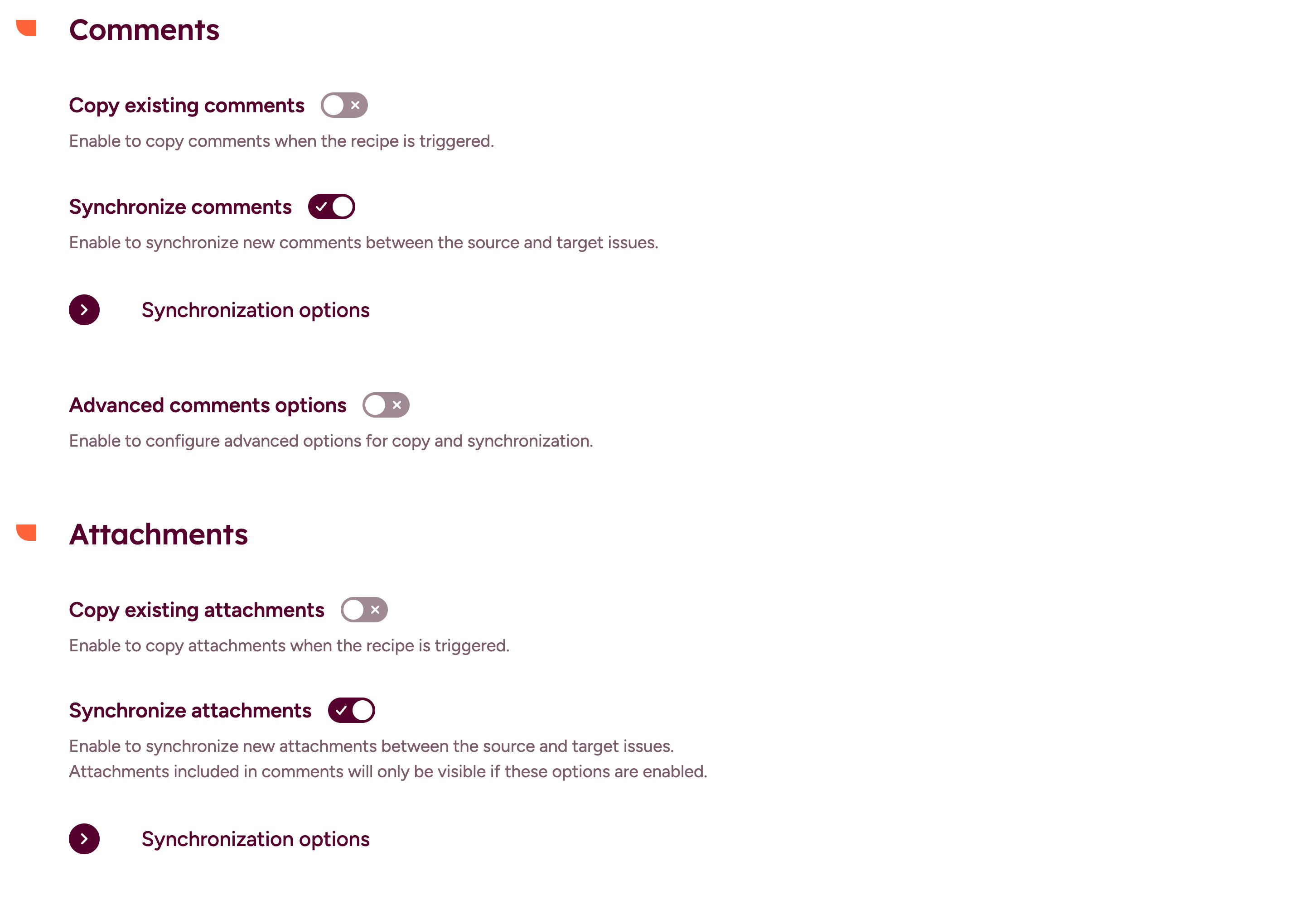
Read documentation on how to copy an issue with all its comments and attachments
Why automate attachment copying in Jira?
✔ Automated – No need to manually download and upload attachments.
✔ Bulk clone – Move multiple attachments across multiple tickets instantly.
✔ Sync attachments – Keep attachments up to date between linked issues effortlessly.
✔ Works across projects – Clone attachments even between different Jira projects.
✔ No-script configuration – Set up rules easily with a user-friendly interface.
✔ Reduces human errors – Ensures files are copied and updated accurately every time.
Learn how to clone Jira issues and keep them in sync in Jira Cloud
Copying attachments in Jira is a frequent requirement, but native methods can be time-consuming and error-prone. Elements Copy & Sync offers a faster, more reliable solution by automating the process and ensuring attachments are transferred seamlessly. The configuration is simple and quick, allowing you to focus on more important tasks.
💡 Try the app for free on the Atlassian marketplace!
Frequently asked questions
Couldn’t find what you need?
Yes. When you use More > Clone, select “Clone Attachments” before clicking Create. This copies files to a new work item, but it cannot target an existing one.
Not with Jira’s native Clone, which only creates a new work item. To add attachments to an existing work item, download and re-upload them manually, or use Elements Copy & Sync to copy attachments between existing work items.
Jira’s native methods keep attachments within the same workflow. Elements Copy & Sync can copy attachments across different Jira projects from a single recipe.
Native cloning copies attachments once. With Elements Copy & Sync, you can sync attachments between linked work items, so files added to the source later are copied to the target automatically. This is the same mechanism used to clone Jira issues and keep them aligned.