

TL;DR
No native one-click clone: Jira Cloud has no button to clone a full project; shared settings copy only structure, not work items.
It’s a two-part job: cloning a project means duplicating settings (workflows, screens, fields) and the work items (tasks, subtasks, comments, attachments).
Native method is manual: copying work items natively relies on CSV export/import, which is slow and breaks hierarchy on large projects.
Faster with Copy & Sync: Elements Copy & Sync clones structure, work items, hierarchy and attachments in bulk using JQL and recipes.
Cross-instance & automation: you can clone a project between Jira Cloud instances and trigger cloning via Jira automation, post-functions or REST API.
Discover Elements Copy & Sync: your ultimate tool for cloning and synchronization in Jira
Jira Cloud has no single button to clone a project. The closest native option is to create a new project and choose Share settings with an existing project, which copies the structure (workflows, issue types, screens, fields, permissions) but not the work items inside it. To clone a project in Jira fully (structure plus tasks, subtasks, comments, attachments and hierarchy), you either export and re-import work items manually via CSV, or use an app such as Elements Copy & Sync to copy everything in bulk. Both methods are covered below, step by step.
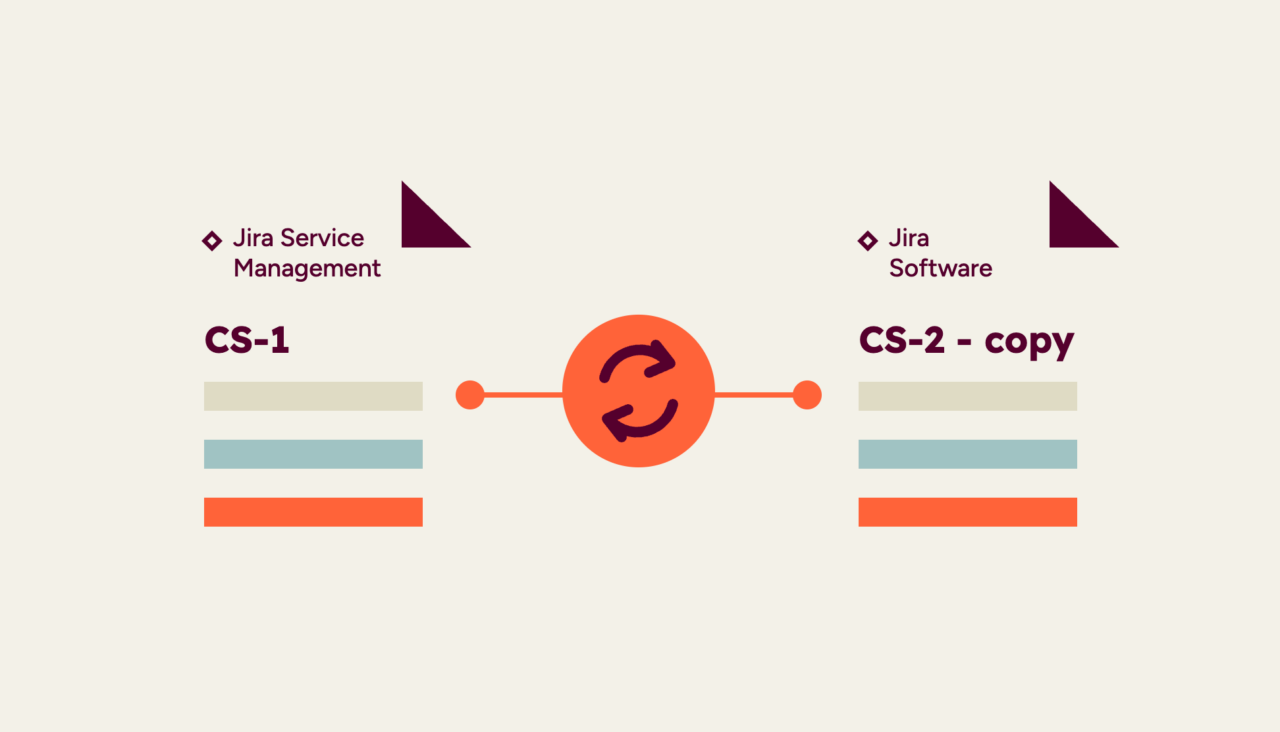
Can you clone an entire project in Jira natively?
Many Jira users attempting to clone project in Jira using only native tools quickly run into frustrating limitations. While Jira Cloud allows you to duplicate a project’s setup by sharing settings from an existing project, this only covers structural aspects like workflows, issue types, and permissions. The actual project data (issues, subtasks, comments, attachments, and links) must be manually recreated or imported, often through error-prone CSV files.
This process is not only time-consuming but also introduces significant risk: issue hierarchies can break, custom fields may not map correctly, and dependencies between issues might get lost in translation.
On top of that, maintaining consistency across multiple clones becomes a logistical challenge when everything is done manually. For teams that need to clone project in Jira regularly, this native process simply doesn’t scale, leading to wasted time, inconsistent setups, and avoidable errors. Many users turn to third-party tools for support, automation, and control that go far beyond Jira’s out-of-the-box capabilities.
Step-by-step: How to clone a project in Jira using native features
- In Jira, go to Projects > Create project.
- Choose your project type: either company‑managed or team‑managed.
- Look for and check “share settings with an existing project.” Select the template to clone project in Jira from. This duplicates the structure: issue types, workflows, screens, fields, permissions, notifications, project lead, default assignee, project category, etc.
- Finish creating the workspace.
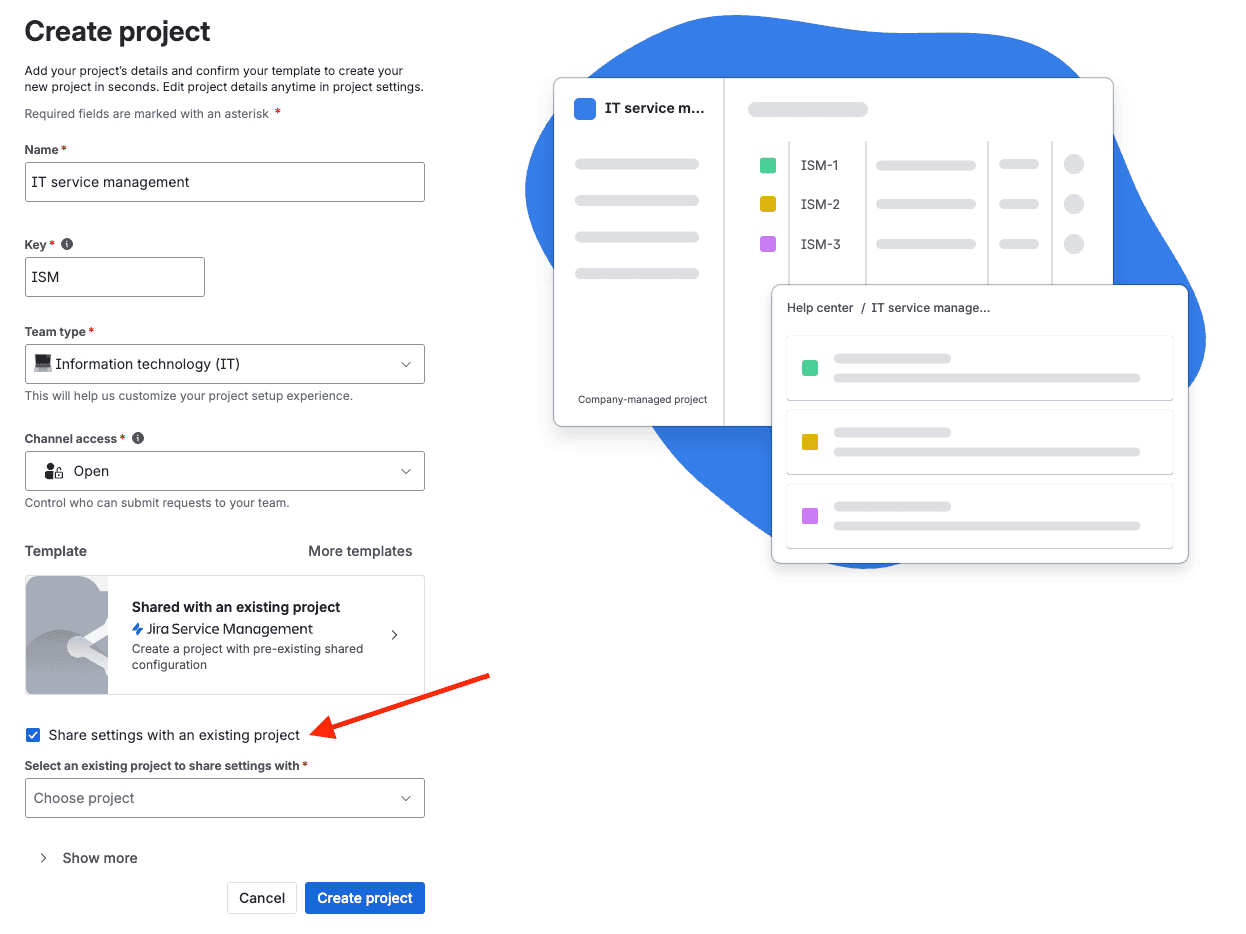
You’ve successfully cloned the structure: but not the issues.
To clone the actual data (issues), you need to export from the old project (e.g., via CSV), then import to the new one. For hierarchy support (parents and subtasks), you likely need to import parent issues first, then subtasks. This works, but it’s manual and error‑prone. Many users find this inefficient, especially when handling multiple projects at once or trying to standardize across departments.
This is where an app like Elements Copy & Sync takes it to the next level: effortless, reliable, and entirely integrated into your cloud environment.
How do you clone a project in Jira with Elements Copy & Sync?
When you’re cloning a project in Jira regularly, be it for templates, onboarding, client setups, or sprint repeats, you want more than just the structure. You need issues, attachments, comments, links, hierarchy, and automation. Elements Copy & Sync delivers all of that, and it does it easily.
It’s a tool designed to support modern teams by accelerating project creation, improving collaboration, and ensuring consistency, especially in company environments that demand scalable, repeatable setups.
Why use Elements Copy & Sync to clone project in Jira?
 It clones entire setup and content, including subtasks, comments, attachments, and issue links: not just the settings.
Bulk‑clone hundreds (even thousands) of issues in a few clicks using JQL or filters: no manual export/import.
Preserve issue hierarchy: epics, stories, tasks, subtasks all copied together.
Powerful field mapping: clone all fields, attachments, comments, or selectively clear, modify, or map fields across projects.
Optional synchronization: keep cloned issues updated when the source changes: one‑way or two‑way.
Easy template creation: maintain a master and clone it as needed.
Flexible triggers: run cloning manually, via Jira automation, post‑functions, or REST API.
Cross‑instance cloning: clone between Jira cloud instances with the app installed in both.
Elements Copy & Sync also helps support company operations by providing a centralized approach to replicating best practices across departments. Whether you’re onboarding a new team or delivering a new service line, it ensures that nothing slips through the cracks.
For any managed workspace that requires replicable processes across departments, Elements Copy & Sync offers unmatched consistency. It’s especially useful when teams are scaling and need to roll out standardized setups across multiple managed environments.
Step‑by‑step: How to clone a project in Jira using Elements Copy & Sync
Step 1: Clone project in Jira structure natively
As above: Create project > Share settings with existing project > Create.
This gives you a framework ready for issue insertion.
Step 2: Set up your first recipe
- Open the app in your Jira instance.
- Click Create a recipe. Name it something like “Clone project template.”
- Configure options:
- Copy full hierarchy (epics and all child issues): essential to clone project in Jira contents
- Copy all fields, including attachments, comments, web links: customize to include or exclude as needed.
- Copy subtasks: maintain full task structure.
Activate/save your recipe.
Read more on the documentation
Step 3: Bulk clone issues into your new workspace
- Go to the template project’s issue search (View all issues).
- Run a JQL query, e.g.,
parent = NULLto identify top-level issues (starts of hierarchies).
Select them and launch your recipe using “Copy full hierarchy” – this pulls entire trees into the new location.
Optionally enable synchronization: keep the copy synced with updates from the template.
Teams managing multiple rollouts can also use automation to trigger this cloning workflow as soon as a new workspace is created, reducing operational overhead. This saves both time and effort, freeing your team to focus on delivering services or new initiatives faster.
Watch demo on how to clone a Jira project
Step 4: Validate the cloned content
Confirm:
- Workflows, issue types, fields, screens, etc., copied from the template project setup.
- All issues, subtasks, attachments, links, and comments are in place in the new workspace.
- If sync is on, changes to template forward to clones.
How to clone project in Jira with consistency, speed, and ease: use cases
| Use case | How Elements Copy & Sync helps |
|---|---|
| Project templating | Clone a master template into a new space with full issue structure, fast and error‑free. |
| Client onboarding / implementations | Reuse structured checklists, tasks, epics per client, just clone and adjust. |
| Epic duplication | Clone an epic with all child issues in one action, not individually. |
| Issue escalation | Auto‑clone service requests from JSM to dev spaces, synchronizing comments and status. |
| Cross‑instance workflows | Replicate setup between Jira cloud environments for testing or staging. |
| Bulk cloning for sprints | Reuse backlog structures across teams without manual setup. |
Elements Copy & Sync has become an essential support tool for many organizations looking to scale their work across agile squads or company divisions.
Wrap‑up: choose the approach that fits you
Native approach pros and cons
Pros:
- Free, no add‑on needed.
- Quick config cloning via shared settings.
Cons:
- Issues not copied.
- Manual, error‑prone import required.
- No bulk or hierarchy support.
- Not practical for recurring or complex setups.
Elements Copy & Sync advantages
- Truly clones the workspace: structure + issues + hierarchy + attachments, comments, links.
- Fast bulk operations, JQL + recipe based.
- Reusable templates with configurable triggers.
- Optional synchronization keeps master and clone aligned.
- Handles complexity with elegance—no manual work or scripting required.
- Adaptable for every team size, from startups to enterprise teams working across departments.
- Designed to support multiple teams, services, and workflows across your entire company.
Learn more about Elements Copy & Sync
Conclusion: unlock seamless duplication when you clone project in Jira
When you need to clone project in Jira regularly, whether for templates, standardization, onboarding, or repeatable patterns, the native method is limited.
Elements Copy & Sync transforms that process into something fast, reliable, customizable, and even automated.
Start with native config cloning (“share settings with existing project”), then let the app take care of issues, hierarchy, attachments, links, and more. You’ll reduce manual effort, avoid errors, and scale your setup with confidence.
Ready to see it in action? Try Elements Copy & Sync for free and start cloning projects the smart way.
Frequently asked questions about cloning a project in Jira
Couldn’t find what you need?
Not with a single click. Jira Cloud’s Share settings with an existing project option clones a project’s structure (workflows, issue types, screens, fields, and permissions) but not its work items. To clone a Jira project fully, you either export and re-import the work items via CSV or use an app like Elements Copy & Sync to copy structure and content together.
Natively, export the work items to CSV and import them into the target project, loading parent work items first and subtasks second to preserve hierarchy. With Elements Copy & Sync, you select the work items with a JQL query and run a recipe that copies them in bulk, keeping fields, comments, attachments, and hierarchy intact.
The native CSV method can, but only through manual, error-prone mapping. Elements Copy & Sync copies subtasks, attachments, comments, and work item links together with the parent items, so the cloned project matches the source.
Yes. With Elements Copy & Sync installed on both Jira Cloud instances, you can clone a project across instances, useful for testing, staging, or replicating a setup between environments.
Yes. With Elements Copy & Sync, cloning can run manually or be triggered automatically via Jira automation, post-functions, or the REST API, so a new project can be populated as soon as it’s created.