



















Automatically clone and sync Jira work items and spaces
Keep teams aligned with flexible copy and synchronization recipes. Streamline key workflows like issue escalation, project cloning or epic copy.
Easily clone work items and spaces in Jira
Stop wasting time on manual cloning: automatically clone Jira issues and spaces with Automation or post-functions.
Clone entire hierarchy of issues and copy their attachments, comments, labels, custom fields and more.
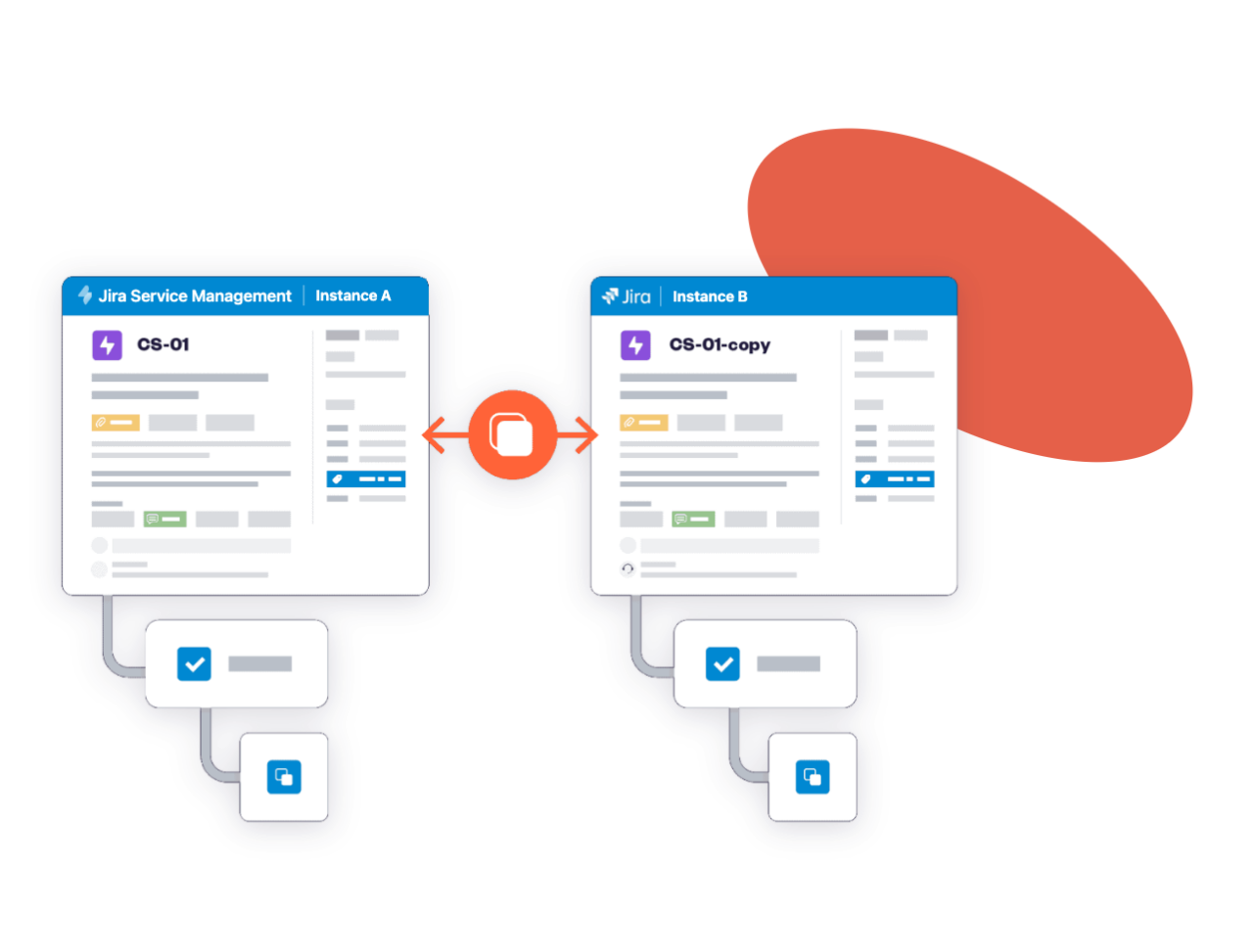
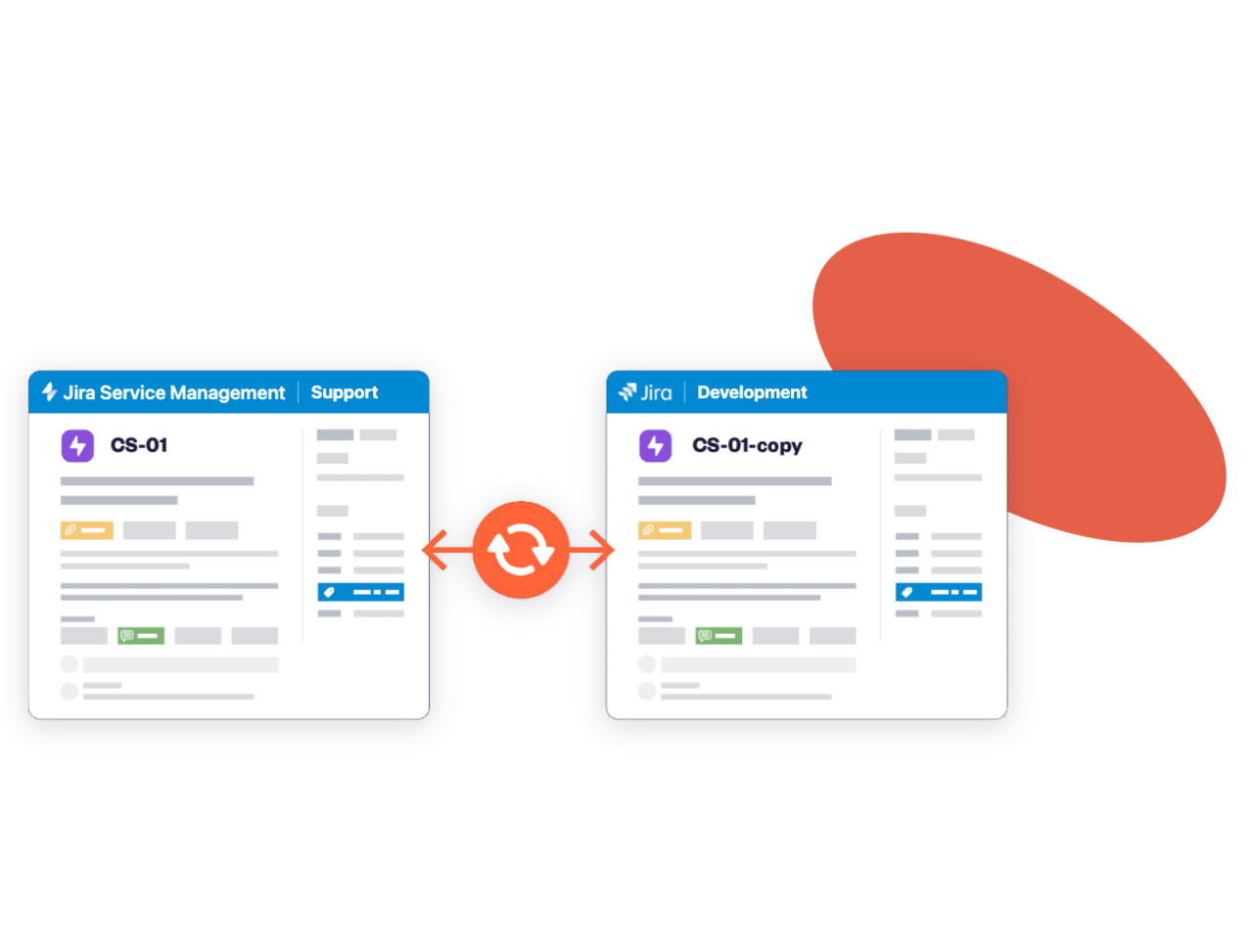
Copy & synchronize work items between different spaces and instances.
Seamless Jira work item syncing across spaces
Improve cross-team collaboration by syncing cloned issues to keep teams aligned and up to date.
Define which fields should be synchronized and how (one way or bi-directional sync).
Go further Jira native cloning features
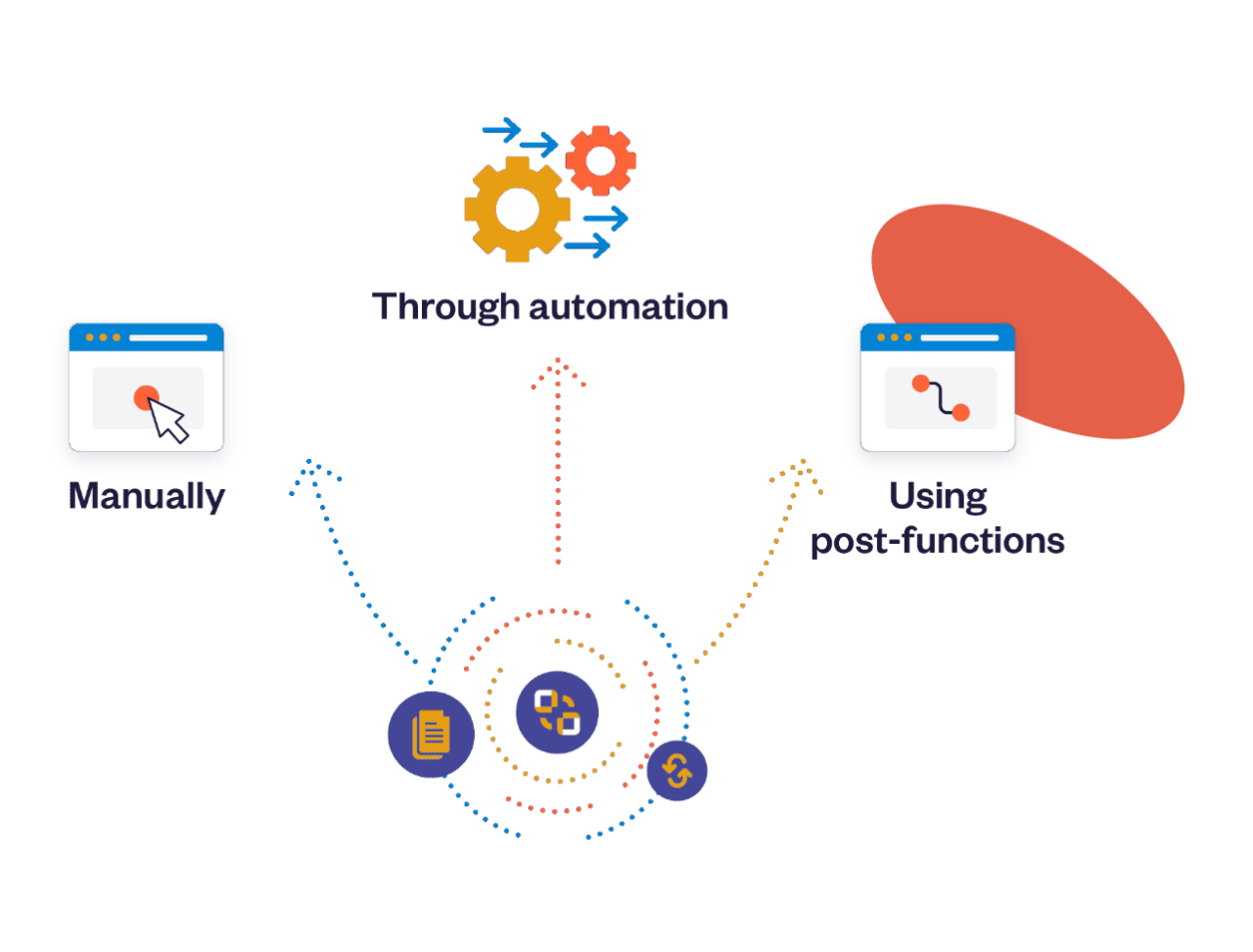
Design custom copy and sync recipes and trigger them automatically in a few clicks:
•Manually
•Through automation
•Using post-functions
Pick which work item field should be copied and/or synchronized, and configure your recipe.
Why teams clone and sync Jira issues
Clone, sync and automate work items across Jira without losing context or wasting time on copy-paste.
Bulk clone issues, clone epics and entire projects
Native Jira clones one work item at a time. Clone thousands at once, keep epic hierarchies intact, or duplicate entire projects.
Clone and sync across Jira instances
Clone and sync between separate Jira and JSM sites.
Clone Jira issues with full context
Pick the fields, comments, and attachments to clone or sync, and map select values between fields, even when teams use different options.
One- or two-way Jira issue sync
Keep work items aligned across spaces and teams. Changes to fields, comments, and statuses sync automatically, in one direction or both.
Automate cloning & subtask creation
Run recipes manually, through Jira Automation or post-functions, with no code, from one reusable, centralized recipe.
Enterprise-grade security
SOC 2 Type II, ISO 27001 and data residency options.
How Jira teams use Elements Copy & Sync
Explore how teams clone, sync and escalate work across Jira projects and instances, without manual copy-paste.
Resolve incidents faster
Easily escalate an issue between support teams in Jira Service Management and development teams working in Jira. Support and dev stay aligned on the same information, with comments, attachments and status updates synced both ways, so customers get answers sooner.
Collaborate across Jira instances
Seamlessly duplicate and sync work items across different Jira instances while preserving key details like comments, attachments, and custom fields.
Replicate full project structures
Automatically create Jira space templates, clone an epic with all its child work items to instantly reproduce full hierarchies.
Automate employee onboarding
Simplify your workflows by automatically triggering the creation of multiple subtasks in Jira when a status is transitioned. Saving time and ensuring consistency across your spaces.