

TL;DR
Structured metadata only works if people fill it in correctly. Today, every page starts from scratch; Link fields are available on every page in the site; and page information lives in two places. Metadata for Confluence Cloud now lets administrators set default values for Content Category fields and limit Link fields to pages with a specific Content Category or label. The Display Metadata macro can also show native Confluence page attributes such as owner, status and version. Pages start with consistent metadata, links point where they should, and readers see everything about a page in one table. No action is required from you. Content Categories now load as lightweight summaries, so editing and browsing feel noticeably snappier.
You set up a Content Category for your process pages. Status, owner, review date, related norms: all defined.
Six months later, half the pages say “Draft” and half say nothing. Review dates are wherever someone happened to click. The “Related process” field links to meeting notes. And anyone who wants to know who owns a page and when it was last touched has to scroll to the page byline, then back to the metadata table.
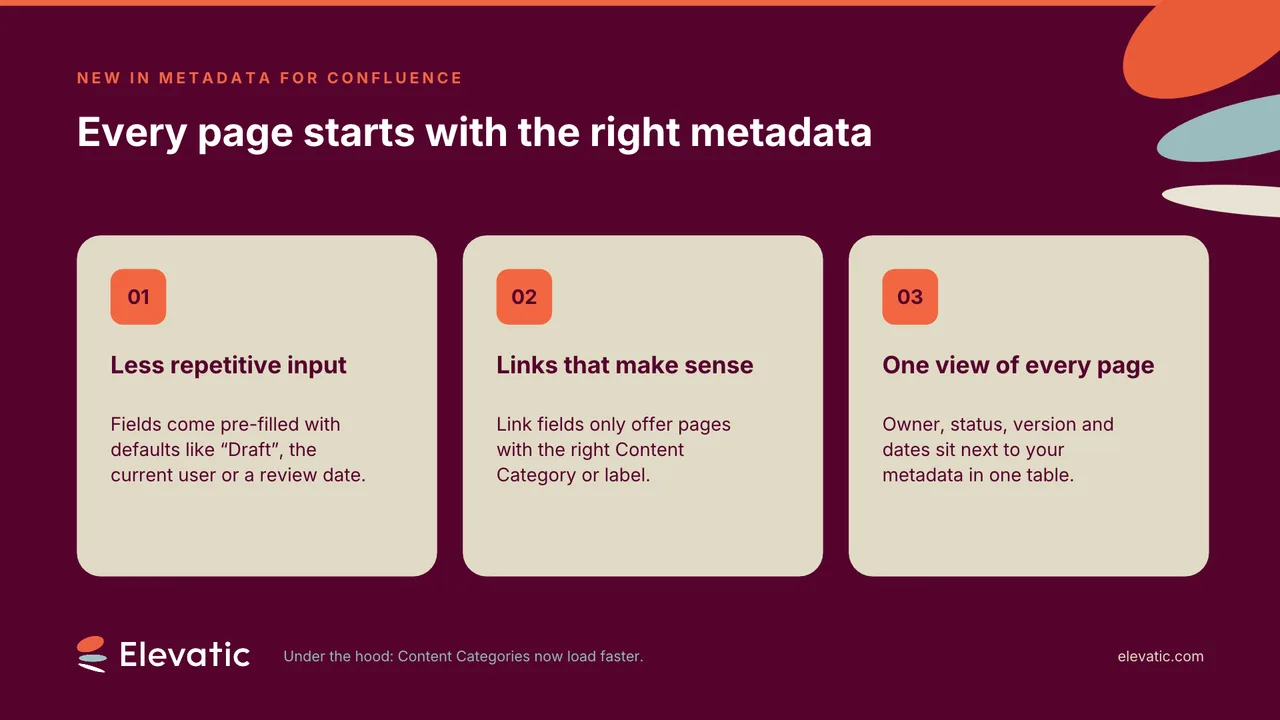
None of this is a people problem. It is a setup problem: every page starts empty, every picker shows everything, and page information lives in two places. Three changes in this release address each one.
Prefill Content Category fields with default values
A Content Category is a set of metadata fields Metadata for Confluence attaches to a type of page, such as a process, a policy or an application.
Administrators can now set a default value for any field in a Content Category. You can assign the category through a linked template or manually on an existing page. Either way, the metadata dialog opens pre-filled. Users review the values, change what needs changing, and save.
Defaults are available for every field type:
- Text: fixed text
- Single Select: one pre-selected option
- Multi Select: one or more pre-selected options
- Page Link: a pre-selected page, respecting any field filters
- User: a fixed user or “Current user” (both can be combined in multi-user fields)
- Date: a fixed date or “Current date” with an optional offset in days, weeks or months
Dynamic values are filled in when the category is assigned, using the person assigning it and the Confluence timezone. So “Next review: current date + 12 months” means twelve months from the day the page was categorized. Once saved, the values are regular metadata, with no ongoing link to the default configuration.
In practice, Status starts at “Draft”, Owner starts with the person creating the page, and Next Review is set before anyone has to think about it. For QMS, document control and knowledge management teams, every page carries standard metadata from day one.
Restrict Link fields to the pages that belong there
Until now, a Link field offered every page the user could see. Now administrators can add filters:
- Content Category filter: only pages with a specific Content Category can be selected
- Label filter: only pages with one or more specific labels (any of them) can be selected
If you combine both, a page must match both. Users filling in the field only see matching pages in the picker. Existing values are never invalidated because filters apply only to new selections.
That turns Link fields into structured relationships. You can link a subprocess to its parent process, a QMS page to the norms it covers (pages labeled as norms), or an application to the server pages it runs on.
Show Confluence page attributes alongside your metadata
The Display Metadata macro can now show native Confluence page attributes in the same table as your custom fields. Seven are available: Status (as the native coloured lozenge), Owner, Creator, Created on, Last updated by, Last updated on and Version.
You pick them in a new checkbox section in the macro configuration and can give each one a custom title, so “Last updated by” can become “Reviewed by”. Attributes are read-only and always reflect the current page state.
You can show only your custom metadata fields, only page attributes, or both together. The macro also works on pages without a Content Category assigned, so teams can surface owner, status and last update in a clean table without setting up metadata first — and without a separate app or workaround for the page information. See Atlassian’s documentation on adding a status to your content for how native page status works.
Key Takeaway
Metadata quality is decided in the first minute of a page’s life. If a page starts empty, it often stays empty, or gets filled in inconsistently.
Defaults, filtered links and a unified page view move that decision away from every author. Instead, the administrator who designs the structure makes it once. That is where governance scales.
Metadata for Confluence helps teams classify Confluence pages, connect them meaningfully and report on them across spaces. Find out more about Metadata for Confluence, see how it fits into Meridian Knowledge Structure for Confluence, or book a demo to see the new features in your own setup.
Frequently asked questions
Couldn’t find what you need?
In Metadata for Confluence Cloud, administrators configure a default value for any field in a Content Category. When the category is assigned to a page, through a linked template or manually, the metadata dialog opens pre-filled. Users can review and change the values before saving.
Yes. User fields can default to “Current user”, and Date fields to “Current date” with an optional offset in days, weeks or months. Both are resolved when the category is assigned, using the acting user and the Confluence timezone.
Yes. Administrators can filter Link fields by Content Category, by label, or both. Users then only see matching pages in the picker. Existing values stay valid because filters apply only to new selections.
Yes. The Display Metadata macro in Metadata for Confluence Cloud can show seven native page attributes: status, owner, creator, created on, last updated by, last updated on and version. You can rename each one, and the macro also works on pages without a Content Category.
No. You can configure the new features, and faster Content Category loading works automatically.