

TL;DR
Two built-in tools: In Jira Service Management Cloud, you can collect feedback with the classic CSAT rating, active by default, or with Surveys, a multi-question builder included in paid plans.
Classic CSAT: The classic rating asks requesters to score their resolved request out of five stars, with room for a comment, and feeds the Satisfaction report.
JSM Surveys: JSM Surveys combine several question formats in one form, can be shared through a link, a portal comment or Jira Automation, and export to CSV.
Choosing a metric: Use CSAT to rate a single interaction, NPS to gauge loyalty to the service as a whole, and CES to measure how easy it was to get help.
Main limit: Built-in surveys stay separate from metrics like time to resolution, so finding the cause of a low score means cross-referencing data by hand.
How to create a survey in Jira: a step-by-step guide for JSM
Jira surveys run in Jira Service Management (JSM) Cloud, which ships with two options. The classic CSAT rating is active by default and asks requesters to score a resolved request out of five stars. Surveys, included in paid plans, is a builder for longer questionnaires that you can share through a link, a portal comment or Jira Automation. Below, you’ll find the setup for each, guidance on picking a metric, and tips to turn answers into action.
What types of survey can you run in Jira?
Start with the question you want answered, then pick the metric. Most service teams rely on three standard scores.
| Metric | What it measures | Usual scale | When to send it |
| CSAT (Customer Satisfaction Score) | How happy someone is with a single interaction | 1 to 5 | Right after a request is closed |
| NPS (Net Promoter Score) | Whether people would recommend the service as a whole | 0 to 10 | On a regular cycle, such as once a quarter |
| CES (Customer Effort Score) | How easy or hard it was to get support | 1 to 7 | After a request, especially for self-service or a new portal |
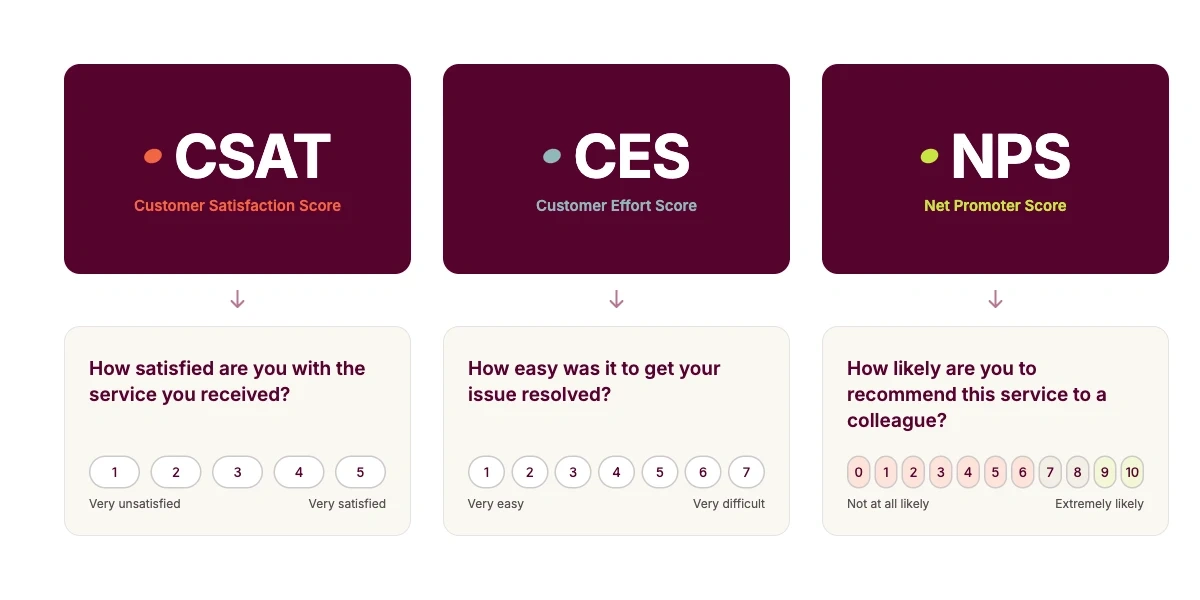
With CES, a lower score is better, because less effort means a smoother experience. Adding one open-text question to any survey tells you the reason behind the number.
How do you set up the classic CSAT survey in Jira Service Management?
This is the feedback tool JSM admins usually meet first. Once a request is closed, JSM sends the requester an email with a five-star scale and an optional comment field. New service spaces have it switched on automatically.
- Open your service space and navigate to Space settings, then Request management, then Customer satisfaction.
- Make sure the Collect customer satisfaction feedback toggle is on.
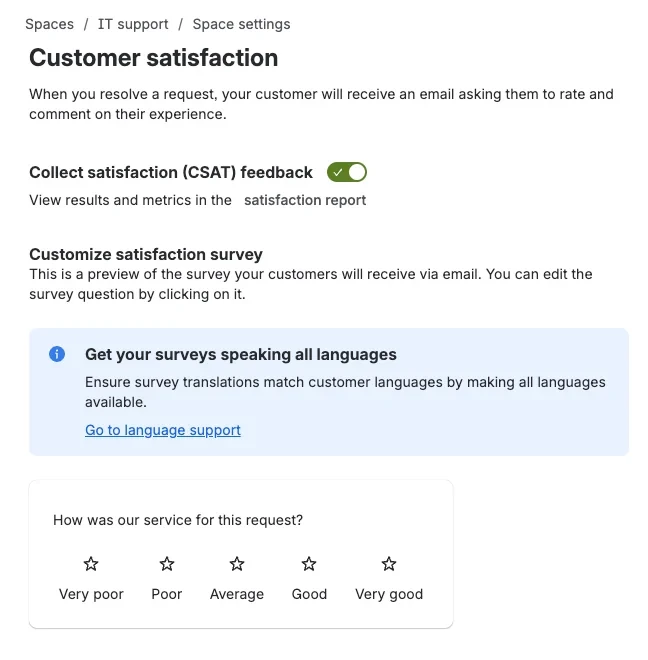
- Click the question text if you want to change how it’s worded.
- Confirm the email actually goes out. Under Space settings, Notifications, Customer notifications, either Request resolved or Customer-visible status changed must be active. The first fires when a resolution is set; the second fires when the request enters a Done-category status.
- Track scores over time in your space’s Satisfaction report.
Team-managed spaces use a different label for the first notification: Request done.
How do you create a multi-question survey with JSM Surveys?
JSM Surveys is a separate tool from the classic rating. It suits questionnaires about a service, a new-hire check-in or a team engagement pulse. You’ll find it in paid plans, inside each service space.
- Enable it: in Space settings, open Features and switch Surveys on.
- Open Surveys in the sidebar and choose Create survey. You can pick a template, build from a blank page, or let Rovo generate a first draft from a description of who you want to ask and why.
- Write your questions, combining rating scales, multiple-choice options and open text. Flag the ones respondents can’t skip.
- Decide on anonymity and permissions: whether answers are named or anonymous, and who can edit the survey, send it or see the results.
- Publish it. Until then, it remains a draft only you can see.
- Distribute it in one of three ways: share the URL, insert it in a portal comment with the /survey command, or send it through an Automation rule.
- Analyze answers in the summary view, apply filters, and download a CSV when you need the raw data.
A Jira Automation rule lets you send the survey at the right moment, for example a few days after resolution.
Classic CSAT or JSM Surveys: which native option should you use?
You don’t have to choose only one. The classic rating tracks every closed request continuously, while JSM Surveys answers a specific question at a specific time.
| Criteria | Classic CSAT survey | JSM Surveys |
| Questions | A single five-star score, plus an optional comment | Several questions: rating, multiple choice, open text |
| Trigger | Sent automatically by customer notifications | URL, /survey in a comment, or Automation rule |
| Best for | Ongoing quality tracking on closed requests | Onboarding, engagement, migration check-ins |
| Results | Satisfaction report | Summary view, filters, CSV download |
| Availability | Active by default in new service spaces | Paid plans |
How do you get more responses to your Jira surveys?
Many unhappy users never log a request or reply to a survey. A few habits improve both response rates and answer quality.
- Ask at the right moment: send right after resolution, while the experience is still fresh.
- Keep it short: three to five questions are usually enough for a targeted survey.
- Meet people where they are: a /survey comment on the work item reaches users in the portal they already use.
- Vary the question: the same prompt on every request tends to produce flat, repetitive scores.
- Close the loop: tell users what changed because of their feedback, so they keep answering.
What are the limits of native Jira surveys?
Built-in surveys tell you how people rated your service. They rarely tell you which part of the service caused the rating, which is what leadership wants to know before approving a fix or a budget.
- A fixed single question: the classic rating can be reworded, but it asks the same thing after every request, so scores tend to plateau.
- No link to service metrics: an average of 3.8 out of 5 signals a problem, but not whether slow resolutions, repeat requests or one request type is behind it.
- No ready-made NPS or CES scoring: JSM Surveys offers generic rating questions, so calculating and trending standard scores is a manual job.
- Reporting outside Jira: going beyond the summary view usually means a CSV file and a monthly spreadsheet that someone has to rebuild.
- No path from score to request: when one team’s rating falls, identifying the specific work items involved takes time.
Native Jira surveys remain a sensible way to gather opinions.
How can you connect survey results to your JSM data?
You can combine feedback and operational data manually, or with a Marketplace app built for it.
| Approach | How it works | Trade-off |
| Manual | Export survey responses to CSV, export JSM reports, and combine them in a spreadsheet or BI tool | No extra cost, but time-consuming and repeated every month |
| Elements Pulse | An IT Experience Intelligence app for JSM that imports native CSAT responses and combines them with JSM operational data | Paid Marketplace app, with a free trial |
Elements Pulse lets you build Jira surveys mixing CSAT, NPS, CES, rating scales and open text, then consolidates the results into one Experience score.
In parallel, it calculates a Productivity score based on JSM indicators like resolution time, first response time and the share of reopened requests.
Any score can be traced back to the individual work items behind it, and a Priority Matrix highlights the teams to address first.
Native JSM surveys vs. Elements Pulse: comparison table
| JSM classic CSAT | JSM Surveys | Elements Pulse | |
|---|---|---|---|
| Questions per survey | ◐ 1 rating + comment | ✅ Multiple | ✅ Multiple |
| Question types | ◐ 5-star rating | ✅ Rating, multiple choice, free text | ✅ CSAT, NPS, CES, rating scale, open text |
| Scored indicators (CSAT, NPS, CES) | ◐ CSAT only | ◐ Build your own | ✅ Built in, rolled into an Experience score |
| When it’s sent | ◐ Work item reaches Done | ✅ Link, comment, Automation, email, chat | ✅ Link, comment, via Automation |
| Uses native CSAT data | ✅ Yes | ❌ Separate | ✅ Yes, imported automatically |
| Combined with JSM operational metrics | ❌ No | ❌ No | ✅ Productivity score + correlation graphs |
| Drill down to tickets | ◐ Per ticket rating | ◐ Connect to work items | ✅ From any chart or score to the tickets behind it |
| Prioritization | ❌ No | ❌ No | ✅ Priority Matrix |
| Export | ◐ Report view | ✅ CSV | ✅ JSON for BI tools (coming soon) |
| Cost | Included | Included on paid plans | Marketplace app |
✅ Available · ◐ Partial or manual · ❌ Not available
Frequently asked questions
Couldn’t find what you need?
Yes, in Jira Service Management Cloud. Every service space starts with the classic CSAT rating, which emails a five-star question once a request is closed. Paid plans also include Surveys, a builder for multi-question forms combining rating, multiple-choice and open-text questions, shared by URL, portal comment or Jira Automation.
No. You can change the wording of the classic rating, but it always remains one five-star question plus a comment. To ask several questions, create a questionnaire with JSM Surveys on a paid plan, or use a Marketplace app such as Elements Pulse, which mixes CSAT, NPS, CES, rating scales and open text.
CSAT rates one specific interaction, typically from 1 to 5. NPS asks whether someone would recommend the service overall, from 0 to 10. CES captures how easy it was to get support, typically from 1 to 7, where lower is better. Using them together helps you give a fuller picture of service experience.
Yes. JSM Surveys lets you filter answers in the summary view and download them as a CSV file, while classic CSAT scores are available in the Satisfaction report. Elements Pulse goes one step further by displaying feedback next to JSM operational data in its dashboards, with JSON export for BI tools coming soon.
Conclusion
- JSM Cloud gives you two native survey options: classic CSAT on every request, and multi-question Surveys on paid plans.
- Pick the metric before the tool: CSAT for interactions, NPS for overall perception, CES for effort.
- Native surveys gather opinions well, but understanding a score still means putting it next to your JSM data.
Next step: turn on JSM Surveys and send a short survey after your next major change. If you then need to connect the answers to request data, install Elements Pulse from the Atlassian Marketplace and try it on your service spaces.