

The latest release of SharePoint Connector for Jira Cloud adds six SharePoint actions to Jira automation. Combine them into the rules your process and organization need, from creating a SharePoint folder for every work item (issue) to moving attachments out of Jira when the work is done.
TL;DR: Jira and space admins combine the new actions with Jira’s triggers and conditions, for example to create a folder for every work item or upload attachments as they arrive. Rules run on behalf of the person who set them up, and new folders inherit the permissions of their parent folder or library. The result: documents in governed Microsoft 365 storage and no manual filing.
How do the SharePoint actions in Jira automation work?
Filing documents in SharePoint by hand means creating a folder, naming it, uploading the file and linking it back, for every single work item. The new actions take over each of these steps: create a folder, find an existing file or folder, upload an attachment, connect it to a work item or unlink it, and delete a folder if it’s empty.
Because each action does exactly one thing, you decide how they fit together, and the automation follows your process instead of the other way around. Everything runs in Jira’s own automation, in space and global rules, without code or external tools.
What can you build?
A few examples:
- A SharePoint folder for every new work item, shown in its SharePoint panel
- Attachments copied to the work item’s folder as soon as they’re added
- Unused folders deleted when the work item is done
- A folder for every new space, created by a global rule
- Attachments moved out of Jira when the work item closes
These step-by-step tutorials walk you through the most common use cases.
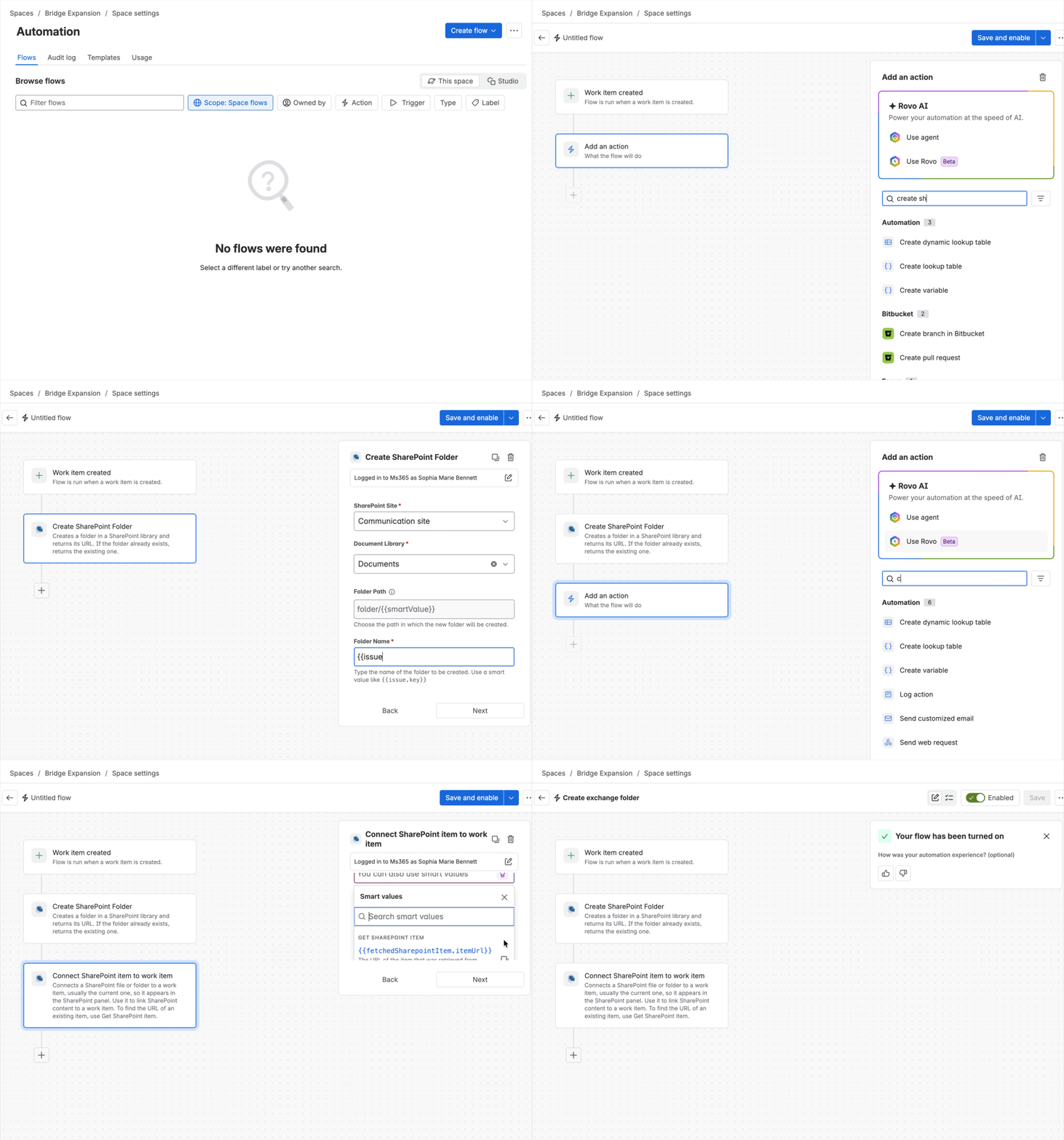
Setting up SharePoint automation in Jira: creating a new flow in a space’s Automation settings with SharePoint Connector for Jira
Who can access the files that Jira automation creates in SharePoint?
Automation doesn’t create a new permission model. Rules work with the delegated permissions of the person who set them up, never with tenant-wide access, so they only reach the sites and libraries that person can. Every folder they create inherits the permissions of where it lands, so files follow the access rules your IT team has already set.
Which teams benefit most from SharePoint automation in Jira?
Automation is most useful wherever every work item comes with its own set of files:
- Teams working with external customers or suppliers, who receive files that land in SharePoint automatically without the need for external access
- Service desk and IT teams, whose requests include screenshots, logs and signed forms
- Project and client teams, who co-edit Word, Excel and PowerPoint files per work item
- Teams with compliance requirements & regulated industries, where sensitive documents has to land in approved storage every time
SharePoint Connector for Jira is part of Meridian Documents Integration for Atlassian, Elevatic’s solution for connecting Microsoft 365 documents with Jira and Confluence.
Try Automation in SharePoint Connector for Jira Cloud
Set up your first SharePoint rule in minutes, with no code, no Power Automate, and no change to your existing permissions. Get SharePoint Connector for Jira on the Atlassian Marketplace → Marketplace listing and start with one of the step-by-step tutorials about SharePoint folder automation in Jira → documentation.
Frequently asked questions
Couldn’t find what you need?
A link only adds a reference to the work item. Someone still has to create the folder, upload the file and paste the link. Automation handles the filing on its own, every time a work item is created, updated or closed, so files go where they belong without anyone moving them.
Only if you set it up that way. The upload action copies attachments to SharePoint and leaves them on the work item. To remove them from Jira, use Jira’s own Delete attachments action. Read the Archive Attachments tutorial to find out how to do this safely.
That’s up to you. A rule can delete the folder when the work item closes, by default only if it’s empty.
Conclusion
- No manual filing: every work item gets its SharePoint folder, and attachments land there automatically.
- No new permission model: files follow the access rules your IT team already manages in SharePoint.
- No code: rules live in Jira’s own automation, next to the ones you already use.
- Governed storage: your documents stay in Microsoft 365, and Jira stays lighter.