






















Include from GitLab™ to Confluence (Markdown, AsciiDoc)

Include files, pull requests, and other data from public or private GitLab repos, right inside Confluence. Supports Markdown, AsciiDoc, Mermaid, PlantUML and more.    

 Keep Your Documentation Connected to GitLab™

Embed up-to-date GitLab content directly in Confluence pages. Files, diagrams, code, and project data kept in sync automatically, no copy-pasting required.
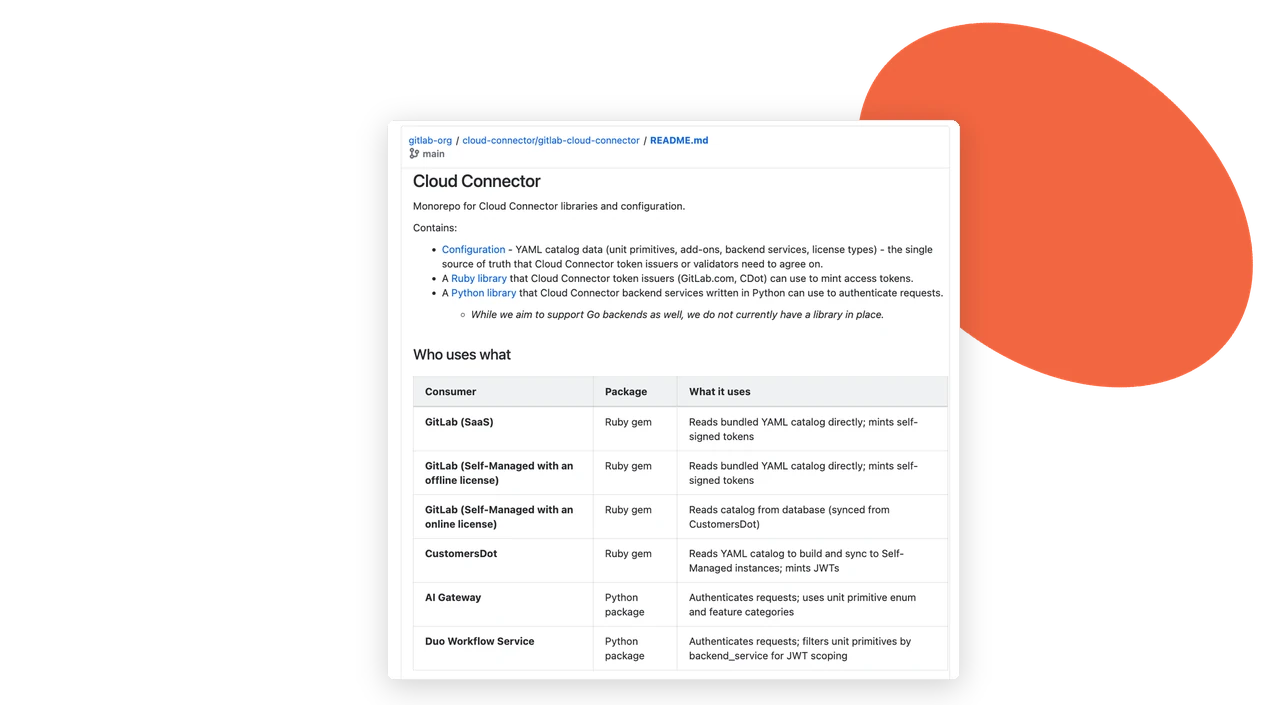
GitLab README.md with tables and links rendered in a Confluence page

Easily embed up-to-date GitLab file content

Include Git content securely from GitLab. Share up-to-date files, diagrams, code, images, and more just by pasting the file URL into a page. Markdown, AsciiDoc, Mermaid, and PlantUML files are automatically rendered as HTML, with syntax highlighting for source code.

Create project dashboards with GitLab data

Use Confluence as a project dashboard by including GitLab data like pull requests, issues & more. With various filtering and sort options, you can adapt your dashboard to your needs.
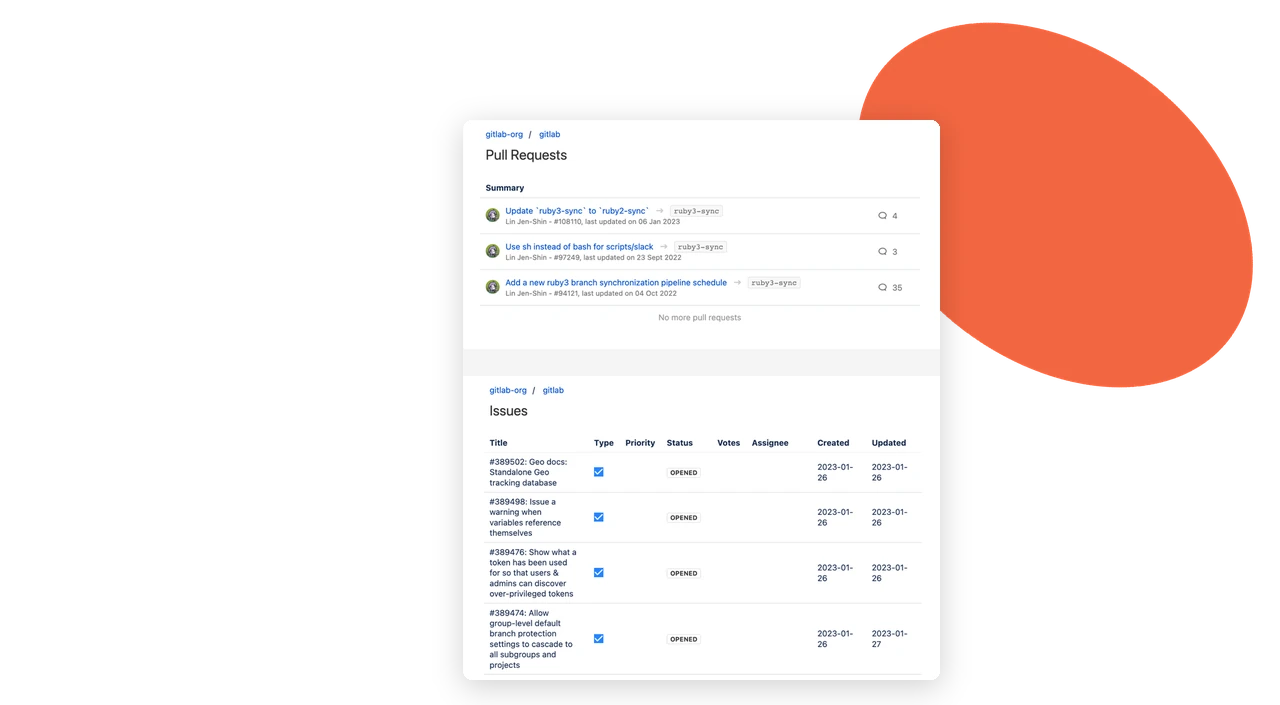

GitLab merge requests and issues for a project displayed in Confluence
Architecture diagram showing GitLab Cloud and GitLab Self-managed connecting to Confluence

Supports setups for GitLab.com & self-managed

Supports various setups, e.g. Confluence with GitLab Cloud or GitLab self-managed via OAuth 2.0, by default or alternatively via shared authentication.

Why use Include from GitLab™ to Confluence ?

Include from GitLab to Confluence keeps documentation, code, and project data connected — so your Confluence pages never go stale. Reduce duplication, speed up reviews, and give your team one place to see what’s happening in GitLab.

Simple inclusion, no duplication

Just copy and paste a GitLab URL into a page — the macro does the rest. No manual copy-pasting of file content that goes out of date.

Rich file rendering

Markdown, AsciiDoc, Mermaid, and PlantUML (including C4) files render as proper HTML with syntax highlighting, PDF/Word export, and Scroll Viewport compatibility.

Built for GitLab, public or private

Works with public and private repositories on GitLab.com or self-managed instances, with secure authentication for private project data.

  • The plugin works well. There are no complaints. We are also communicating with support to suggest new features. Support responds quickly and development quickly implements new features to make our work easier.

    Alexander Ermolaev
  • Super simple , write /git and paste the link.

    Corneliu Vasiliu

Frequently asked questions

Couldn’t find what you need?

  • After the 2025-01-17 you get a An error occurred: The redirect URI included is not valid when trying to authenticate.

    On 2025-01-17 the URL of the app changed. You have to update the GitLab registration:

    1. In GitLab, navigate to the registration of the Include GitLab for Confluence
    2. Edit the current registration
    3. Update the Redirect URI to https://include-gitlab-for-confluence.mibexsoftware.com/oauth-callback

    Alternative, you can recreate the registration.

  • Yes, you can export Git assets (including files and other content) as part of a PDF or Word export of your Confluence page.Pagination

  • Advanced links such as {asciidoc-dir}/../../shared/versions/stack/{source_branch}.adoc are currently not supported and we display in the included file.

  • If images in your Markdown or AsciiDoc files aren’t rendering, it’s often due to the use of relative paths that can’t be resolved in the current context.

    To ensure images are rendered correctly:

    • Use absolute paths relative to the repository root when possible.
    • Make sure the image file exists and is accessible at the specified path.

    AsciiDoc

    === Picture 1 Block
    image::/images/Example.png[]
    === Picture 2 Inline
    image:/images/Example.png[]
    

    Markdown

    ![Alt text](/src/images/image.png)
    
  • You can add custom sizes to images in Markdown using HTML. While Markdown is great for formatted text, it doesn’t natively support resizing images. But with the img tag, you can easily control image dimensions.

    For example:

    .image-container img {
      width: 200px;
      height: auto; 
    }             
    
  • Yes, you can customize the layout for PDF exports, including the image size, by modifying the Confluence PDF stylesheet. For example, adding the following CSS rule to the PDF stylesheet will ensure that the images in the exported file are displayed at the same size:

    img { width: 85%; height: 85%; }
    

    For more details on customizing PDF exports, you can refer to the official Atlassian documentation: Customize Exports to PDF.Pagination

  • Branches with slashes in their name (eg bugfix/issue-123, feature/abc) are not supported at the moment.

    As a workaround, replace the slash of the branch name in the URL with %2F, for example, the bugfix/issue-123 branch URL https://gitlab.com/your-repo/test-files/-/blob/bugfix/issue-123/src/test.txt?ref_type=heads to https://gitlab.com/your-repo/test-files/-/blob/bugfix%2Fissue-123/src/test.txt?ref_type=heads

    Let us know your use case here if you require support for slashes in branch names.

  • You can use !include <C4/C4_Container> for including the C4-PlantUML library.

    Example:

    @startuml
    !include <C4/C4_Container>
    Person(personAlias, "Label", "Optional Description")
    Container(containerAlias, "Label", "Technology", "Optional Description")
    System(systemAlias, "Label", "Optional Description")
    System_Ext(extSystemAlias, "Label", "Optional Description")
    Rel(personAlias, containerAlias, "Label", "Optional Technology")
    Rel_U(systemAlias, extSystemAlias, "Label", "Optional Technology")
    @enduml
    

    Reference: https://plantuml.com/stdlib#062f75176513a666

  • To use the official Standard Library for PlantUML, you can use the following syntax in the PlantUML file:

    !include <awslib/AWSCommon>
    !include <awslib/Groups/all>
    !include <awslib/ApplicationIntegration/MQ>
    !include <awslib/Database/DocumentDB>
    !include <awslib/Database/RDS>
    !include <awslib/Containers/Containers>
    !include <awslib/Storage/SimpleStorageService>
    !include <awslib/Storage/SimpleStorageServiceGlacier>
    !include <awslib/ApplicationIntegration/APIGateway>
    !include <awslib/SecurityIdentityCompliance/Cognito>
    !include <awslib/Database/DocumentDB>
    !include <awslib/Database/RDS>
    !include <awslib/Compute/Lambda>
    !include <awslib/InternetOfThings/IoTThingGeneric>

  • When using a Scroll Viewport with images hosted in Git, relative image paths can trigger an authentication request, preventing the images from loading properly.

    To resolve this, use a full URL that references the raw file URL directly. This allows Scroll Viewport to fetch the image without requiring authentication.

    ⚠️ Note: This approach only works if the repository is publicly accessible. If the repository is private, authentication may still be required, and the images will not be visible.

    Example Usage in AsciiDoc:

    image::https://gitlab.com/yourInstance/-/raw/master/image.png[title="image"]
    
    How to Get the Raw File URL?

    To obtain the raw URL of an image file in GitLab Cloud:

    1. Navigate to the image file in your repository.
    2. Right-click on the image and choose Copy Image Address

Let’s make Atlassian
work better for your team

Our apps connect Confluence, Jira and Bitbucket with the tools you already use, like Git, Microsoft 365 and SharePoint.
Tell us what you need and we’ll help you find the right solution.